
Mailbox (Alpha)
Mailbox brings email inside Inoscope. Configure company mailboxes by purpose, read inbound messages, compose outbound email, attach files from the library, and share sending identities across the team. Mailbox is alpha in 3.6.3.
Email Settings
Open the gear beside Mailbox to manage the email system. Settings has three tabs.
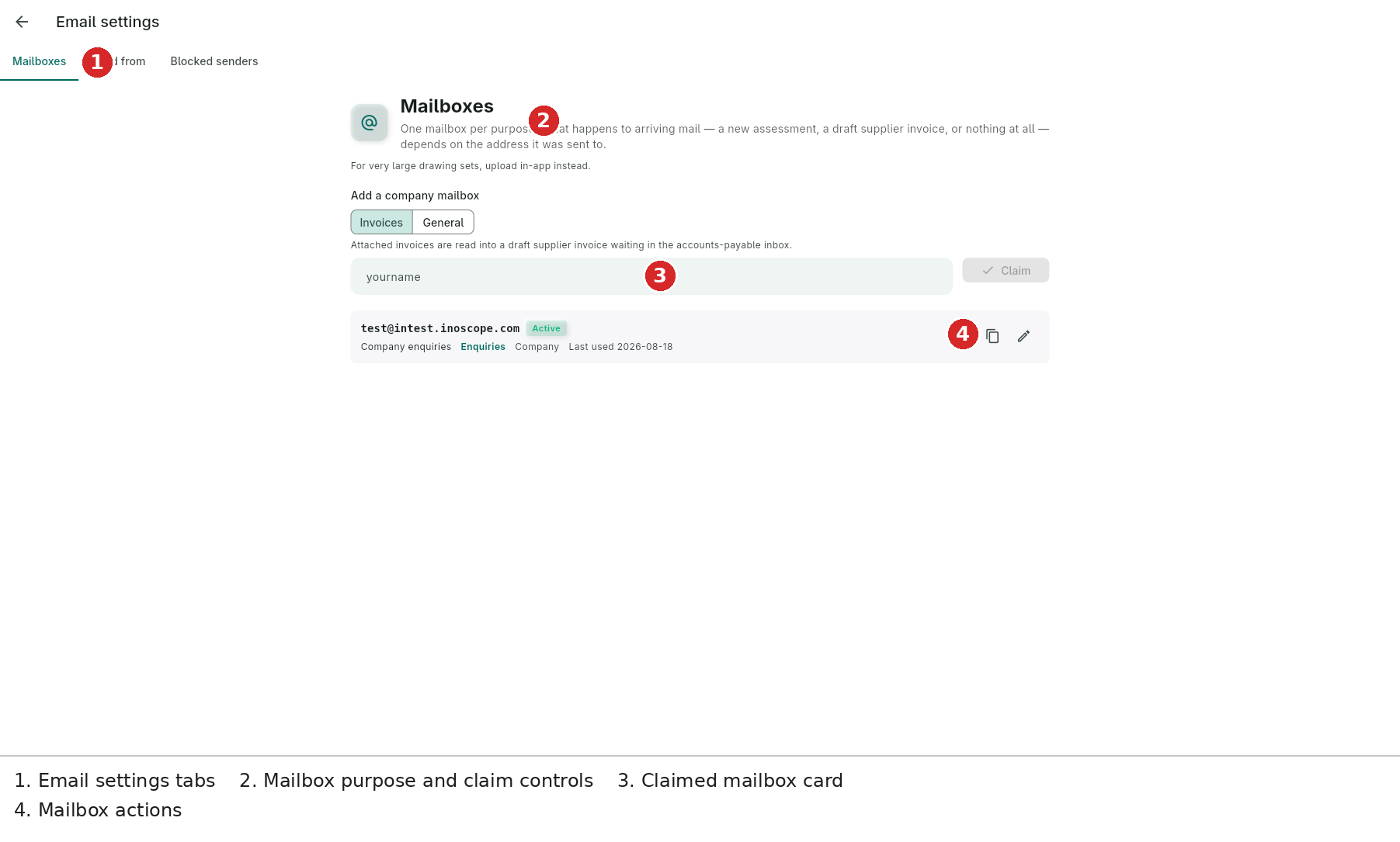
Mailboxes
- Purpose tabs — configure the address as Invoices or General; enquiries mailboxes are also supported.
- Purpose routing — one mailbox per purpose determines what happens to arriving mail. Invoices can become draft supplier invoices; enquiries can create assessments from attachments.
- Claim — enter an address prefix such as
yourname, then claim the company mailbox. - Mailbox card — shows the address, Active state, company purpose, last-used date and actions to open, copy or edit it.
For very large drawing sets, upload in-app instead of sending them by email.
Send From
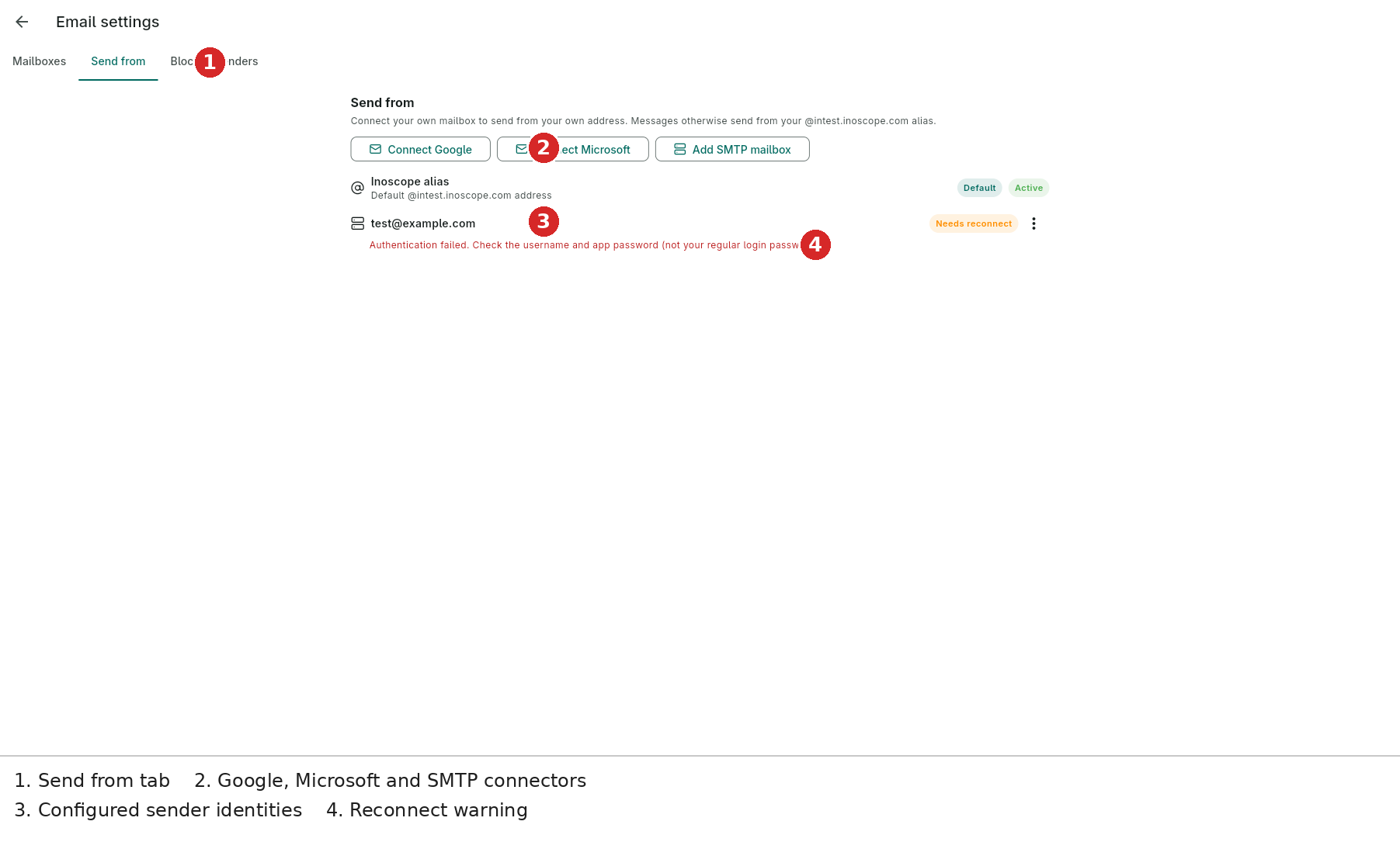
Connect a sender with Connect Google, Connect Microsoft or Add SMTP mailbox. The list distinguishes the default active Inoscope alias from connected addresses. A sender that needs attention shows Needs reconnect and an authentication message; use an app password where the provider requires one, rather than the normal login password.
Blocked Senders
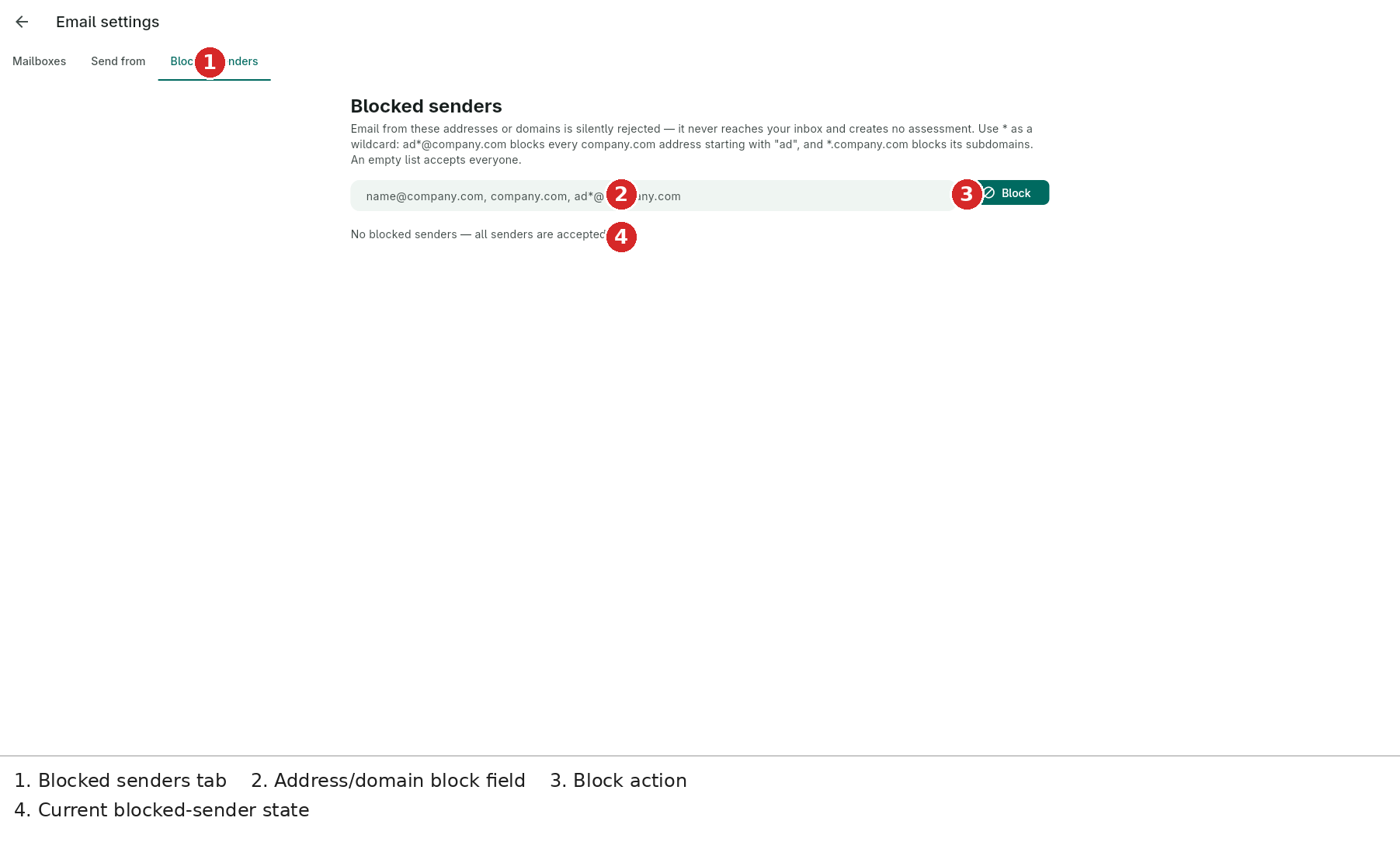
Block individual addresses or entire domains. The field accepts comma-separated entries such as [email protected], company.com and ad*@company.com. Use * as a wildcard. An empty list accepts everyone; blocked mail is silently rejected, never creates an assessment and never reaches the inbox.
Email Workspace
After a mailbox is claimed, the Mailbox navigation opens a three-pane email workspace.
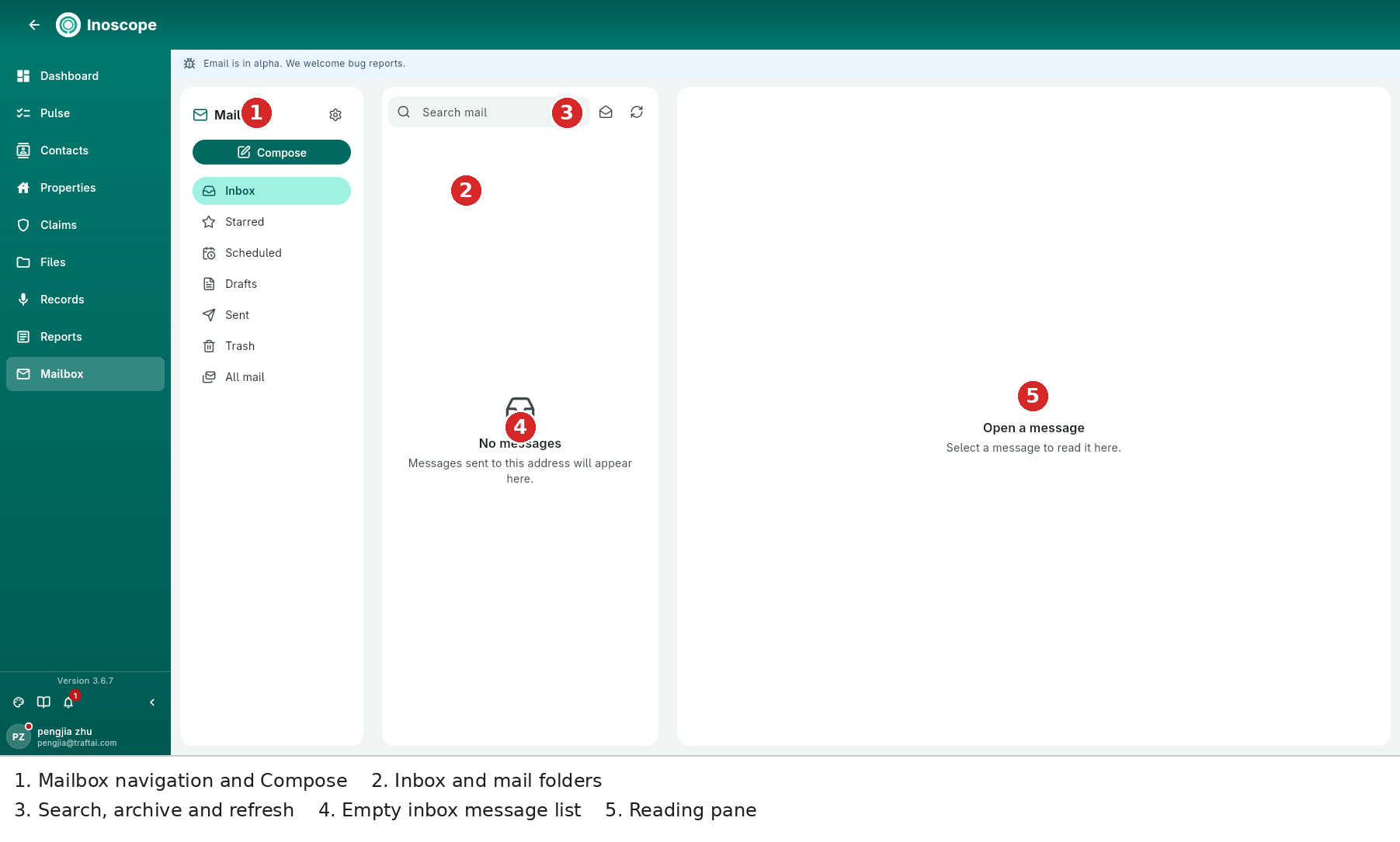
- Mailbox rail — Compose, Inbox, Starred, Scheduled, Drafts, Sent, Trash and All mail.
- Inbox — search mail, archive, refresh and select a message. Empty folders explain what will appear there.
- Reading pane — the selected message opens here; when nothing is selected it shows Open a message.
- Alpha banner — report problems while the feature is being developed.
Inbound messages are routed according to the claimed mailbox purpose. An enquiries address can turn attachments into a new assessment and confirm receipt; an invoices address can prepare a draft supplier invoice for review.
Compose and Reply
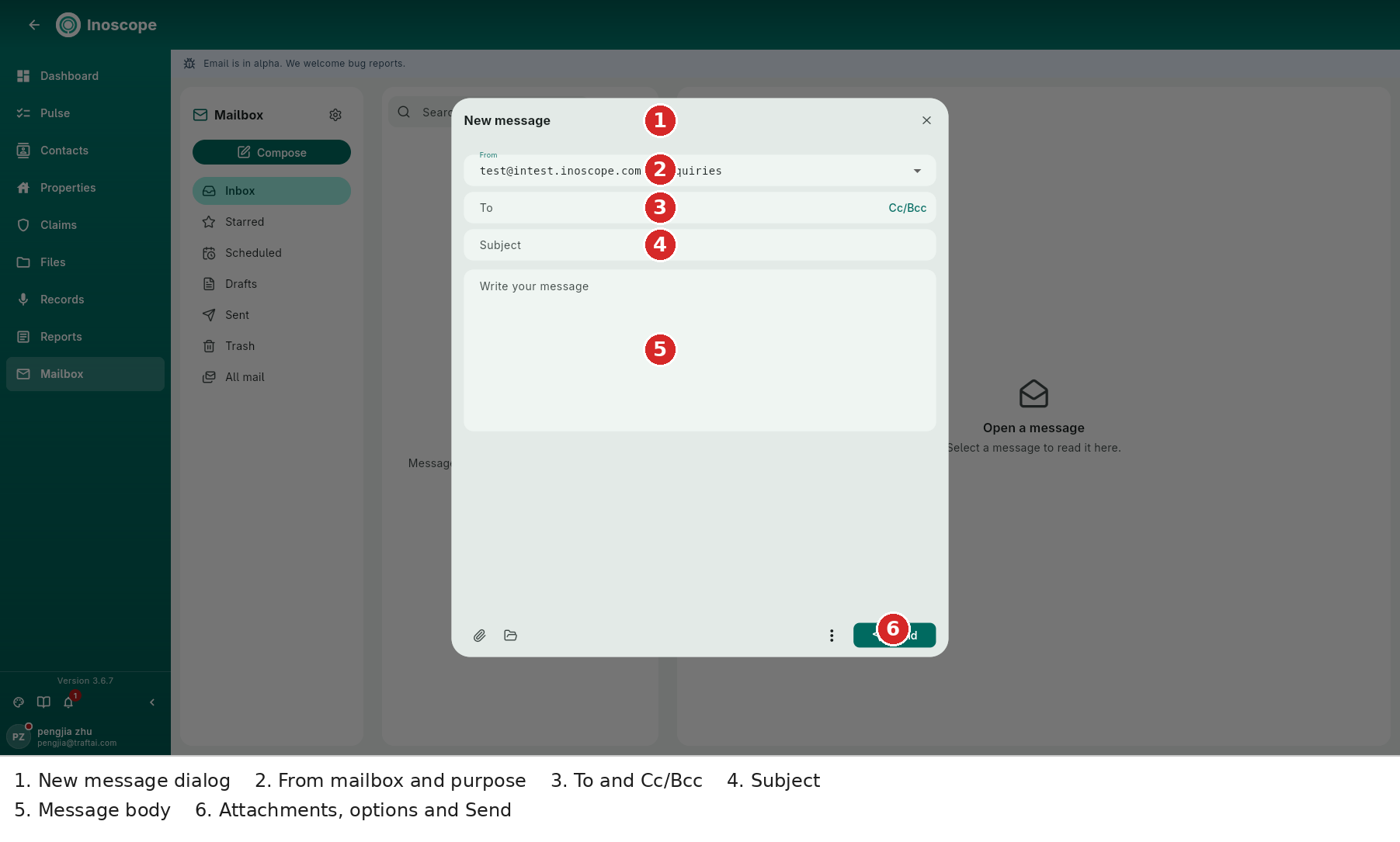
- From — choose the claimed sender and purpose, for example
test@… · Enquiries. - To / Cc / Bcc — add recipients and expand the copy fields when required.
- Subject — set the email subject.
- Message body — write the reply or outbound message.
- Attachments — attach a file or browse the library, then use the overflow menu for more actions.
- Send — submit the message and watch for success or failure feedback.
The same workspace supports drafts and scheduled messages. Shared company identities give the team a consistent sending address.
What Mailbox Does
- Inbound — route by purpose, create assessments from enquiries and prepare invoice drafts.
- Outbound — compose and reply in the app, using files from Files.
- Delivery feedback — receive a success or failure result instead of silently losing a send.
- Team sharing — company mailboxes and sending identities can be managed for the workspace.