
Assessments
Assessments are the core of Inoscope. Each one keeps its source files, AI summary, measurements, costing, memories, reports and collaboration in one workspace. Choose the smallest workflow that matches the job, then move to a richer assessment when the evidence requires it.
Assessment Types
| Type | Best For | Input | Output |
|---|---|---|---|
| Rapid Assessment | A quick site visit | Up to five photos and short notes | A focused record of visible issues and follow-up scope |
| Damage Assessment | Insurance or repair investigations | Site photos and evidence | Damage items, authenticity/confidence evidence and repair line items |
| General Work Assessment | Maintenance, renovation and non-damage work | Photos, notes and documents | Work scope with materials, labour and equipment |
| Tender Assessment | Complex procurement and construction pricing | BOQ/SOQ/SOW, drawings, specifications, PDFs, DWG/DXF and zip files | Structured take-off, priced hierarchy, reports and quote workflows |
See Rapid, Damage, General and Tender for the full workflow per type.
Creating an Assessment
Click + New → New Assessment in the top-right header.
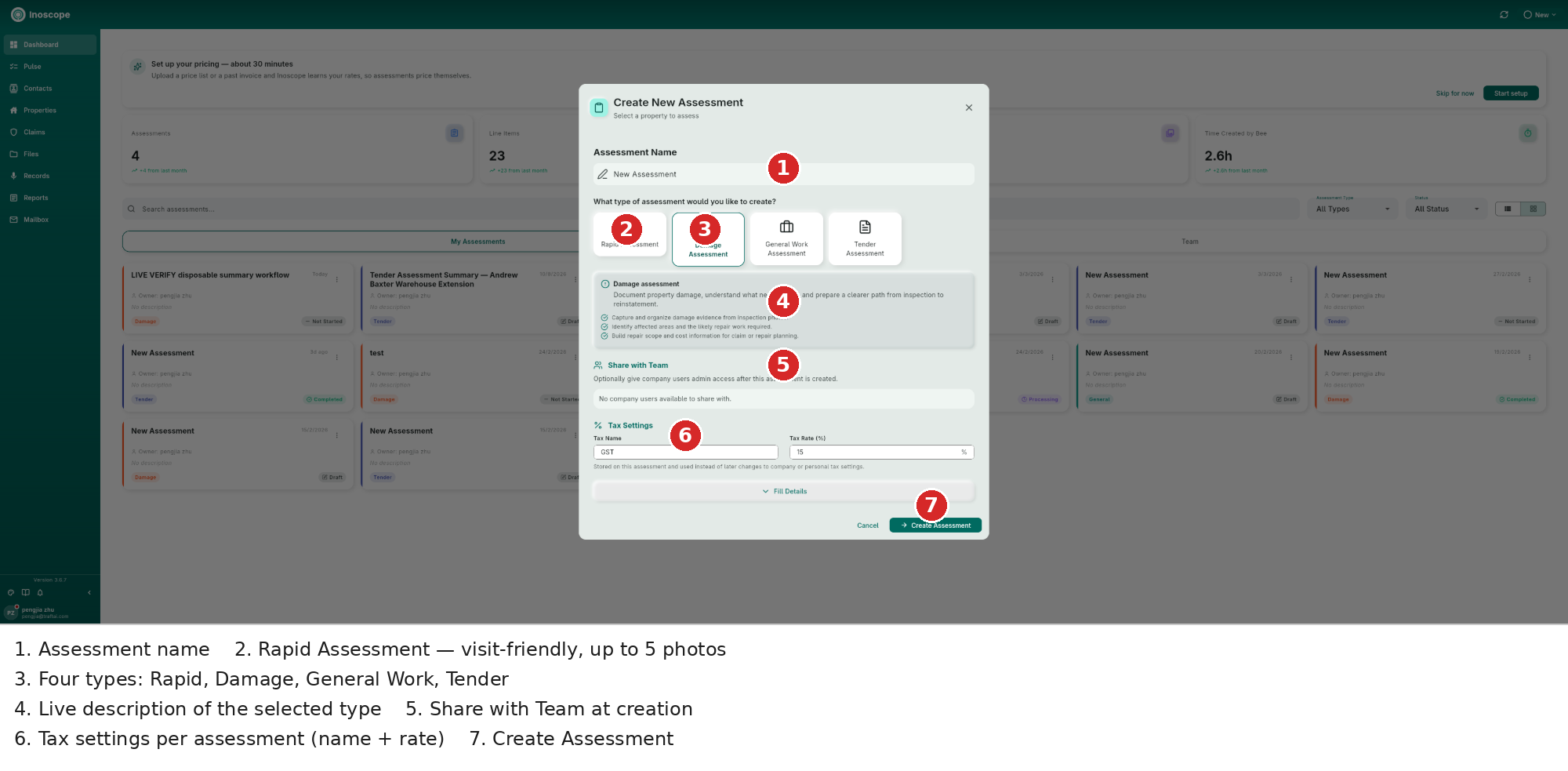
- Assessment Name — use a property or job name that will remain searchable.
- Type cards — Rapid, Damage, General Work and Tender. The panel below explains the selected workflow.
- Share with Team — optionally grant company users admin access immediately after creation.
- Tax Settings — set the tax name and rate stored on this assessment.
- Fill Details — add a description and property details; a new property can be named here or an existing property selected.
- Create Assessment.
The Assessment Workspace
A full Tender workspace demonstrates the common structure shared by the richer assessment types.
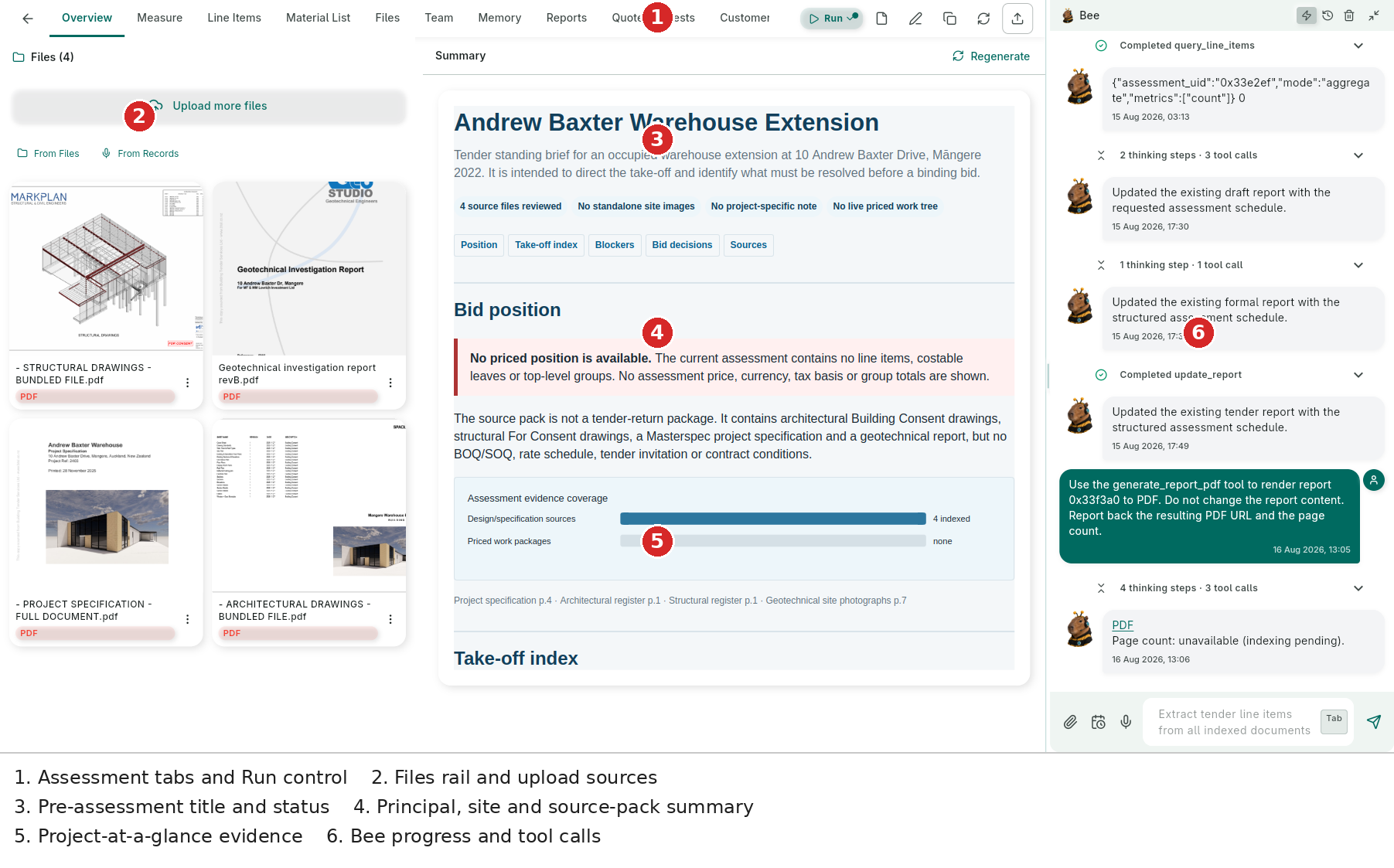
- Tab strip — Overview, Measure, Line Items, Material List, Files, Team, Memory, Reports, Quote Requests and Customer Quotes.
- Run — starts the next Bee pipeline step. Header actions also expose file, edit, snapshot, refresh and share/export controls.
- Files rail — upload more files, attach from Files, or attach a recording from Records. Tiles show type and processing state.
- Summary — structured facts, status callouts, evidence coverage, blockers and source links; use Regenerate when the source pack changes.
- Bee dock — the assistant stays alongside the assessment so it can operate on the open files and tabs.
A completed tender can show a denser summary with commercial facts and decision points:
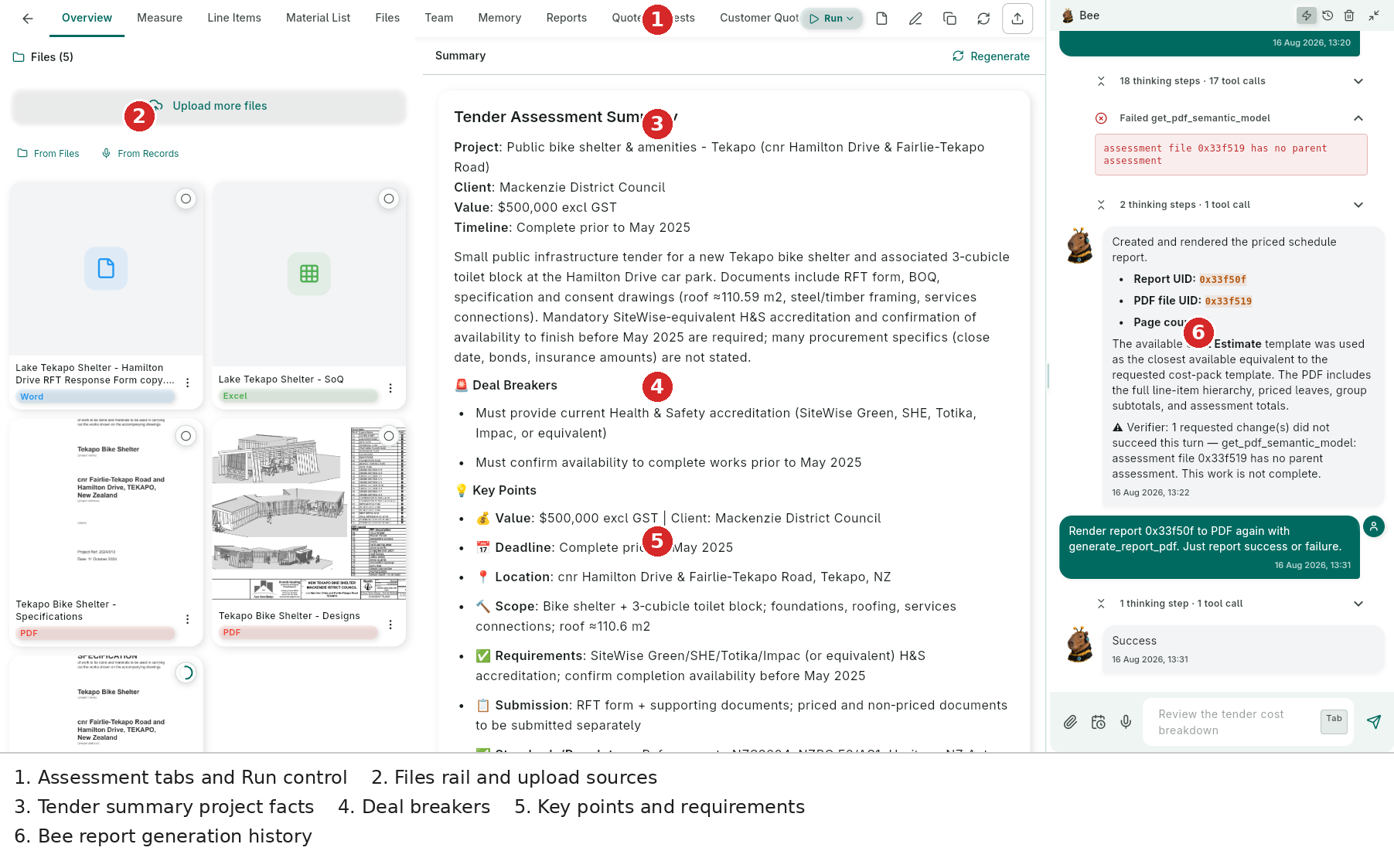
The Overview is not just a cover page. It can contain project, client, value and timeline facts, deal breakers, key points, source coverage, evidence links and a record of Bee's report-generation work.
Every Assessment Tab
Overview
The Overview answers: What is this job, what evidence exists, and what should happen next? It combines the file rail with a generated summary. On tender work it may show the principal, site, source-pack count, procurement risks, blockers and take-off position. Regenerate after adding or replacing source files.
Measure
Measure is the drawing/document take-off surface. Set scale, draw lines, rectangles or polygons, and attach the resulting quantity to a line item. Measurement citations preserve the source page and geometry so a reviewer can trace a quantity back to evidence.
Line Items
Line Items is the costed hierarchy: group rows, subgroups and leaf items. It supports:
- Outline navigation and warning counts.
- Trade grouping and Material/Labour/Equipment type chips.
- Cards or dense Table view.
- Quantity, unit, unit price, source, margin, markup and totals.
- Review mode, batch selection, row editing and measurement links.
- Pre-margin cost and live GST-inclusive totals.
See Line Items & Costing for the table, card, review and editing details.
Material List
Material List flattens priced material leaves into an ordering-oriented list. Use it to consolidate products, check quantities and export CSV/XLSX for procurement. It is intentionally different from the line-item hierarchy: the hierarchy explains the estimate, while Material List answers what must be ordered.
Files
Files is the assessment's evidence set. Upload files, attach existing library files, or use From Records for voice recordings. Counters and processing states expose whether indexing is complete. Images can feed damage review; documents can feed Bee, reports and tender extraction. Snapshots freeze the assessment state.
Team
Team shows who has access to this assessment, with names, email and role. Share at creation or add people later. See Team Collaboration.
Memory
Memory stores assessment-specific instructions Bee must retain: client preferences, site constraints, naming conventions, approval rules or pricing exceptions. User and company memories work alongside it. See Memory.
Reports
Reports turns the assessment into a formal deliverable. Create from a template, edit in the rich editor, preview, save, export to PDF/HTML and share with restricted or public access. See Reports.
Quote Requests
Quote Requests is the contractor-pricing workflow. Select line items, send a request to a supplier, track outgoing requests and compare returned rates before updating the estimate. It is beta and is most useful after the scope has been reviewed.
Customer Quotes
Customer Quotes packages selected scope for the client. Review the chosen items, margin/tax treatment and presentation before sending. It is distinct from contractor quote requests: one gathers market input, the other presents a commercial offer.
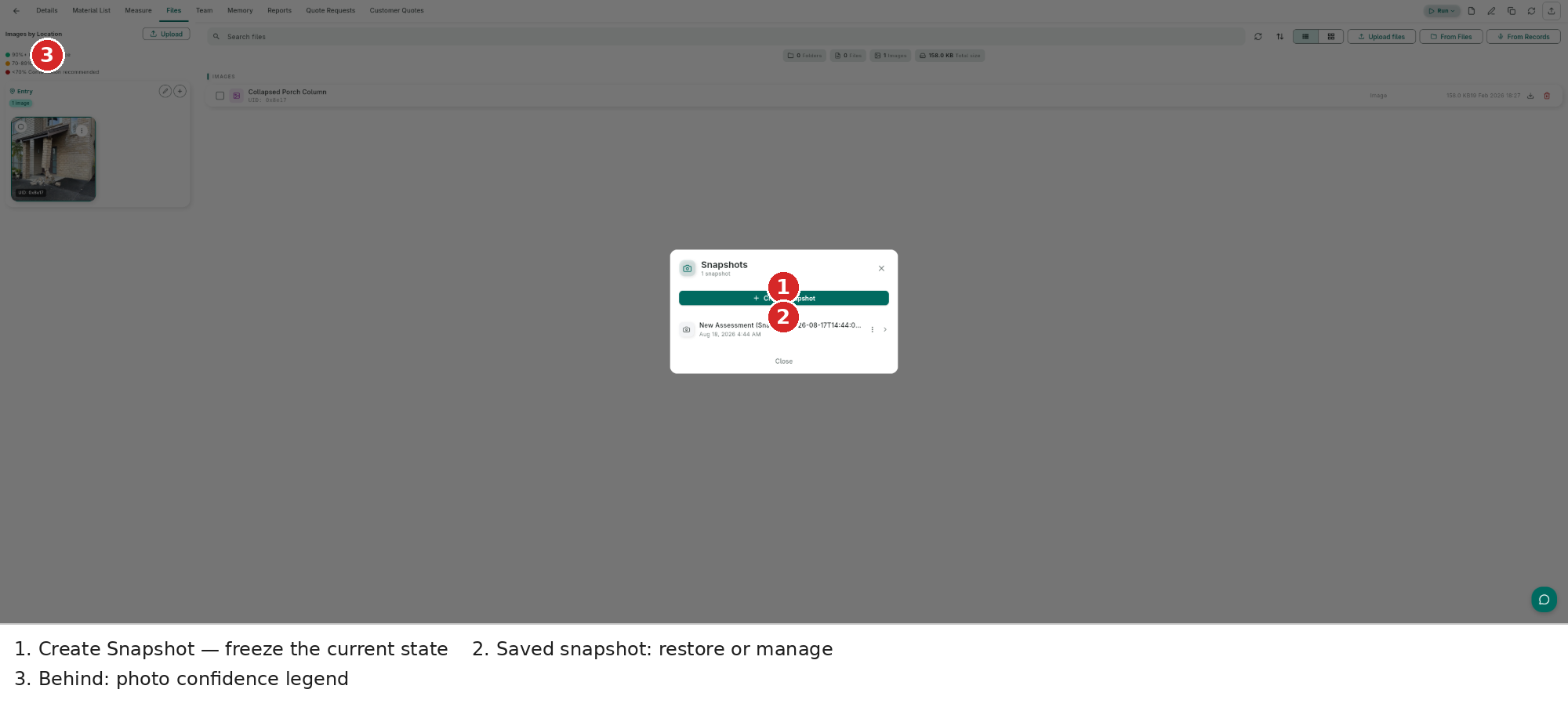
Snapshots
Freeze an assessment before a large edit, rerun or what-if price change. Restore, rename or delete saved states from the header's Snapshots action.
Memory
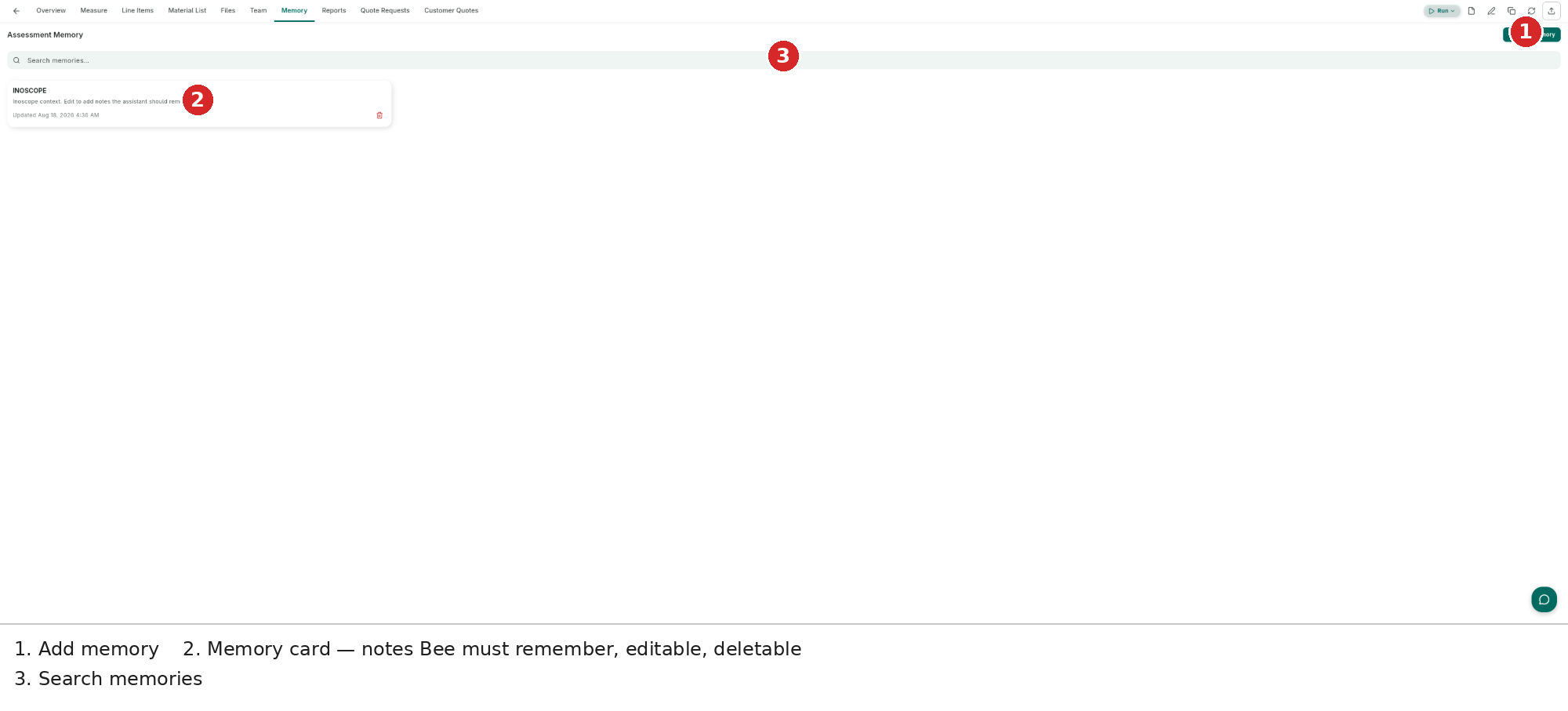
- Add a memory at assessment level.
- Search and review existing memories.
- Edit or delete stale instructions.
- Keep permanent company rules in company memory, and job-specific facts here.
Editing and Housekeeping
- Edit Assessment renames or changes the assessment details.
- The dashboard card menu offers sharing, rename and delete actions.
- Share links support public or restricted access for reports and records.
- Use Refresh after a background upload or AI run.