
Pulse
Pulse is Inoscope's lightweight task and project tracker. Use it to plan your day, organise work into projects, and keep small tickets visible alongside your assessments. Open Pulse from the checklist icon in the top navigation bar (second from the left) — hover any icon to reveal its label.

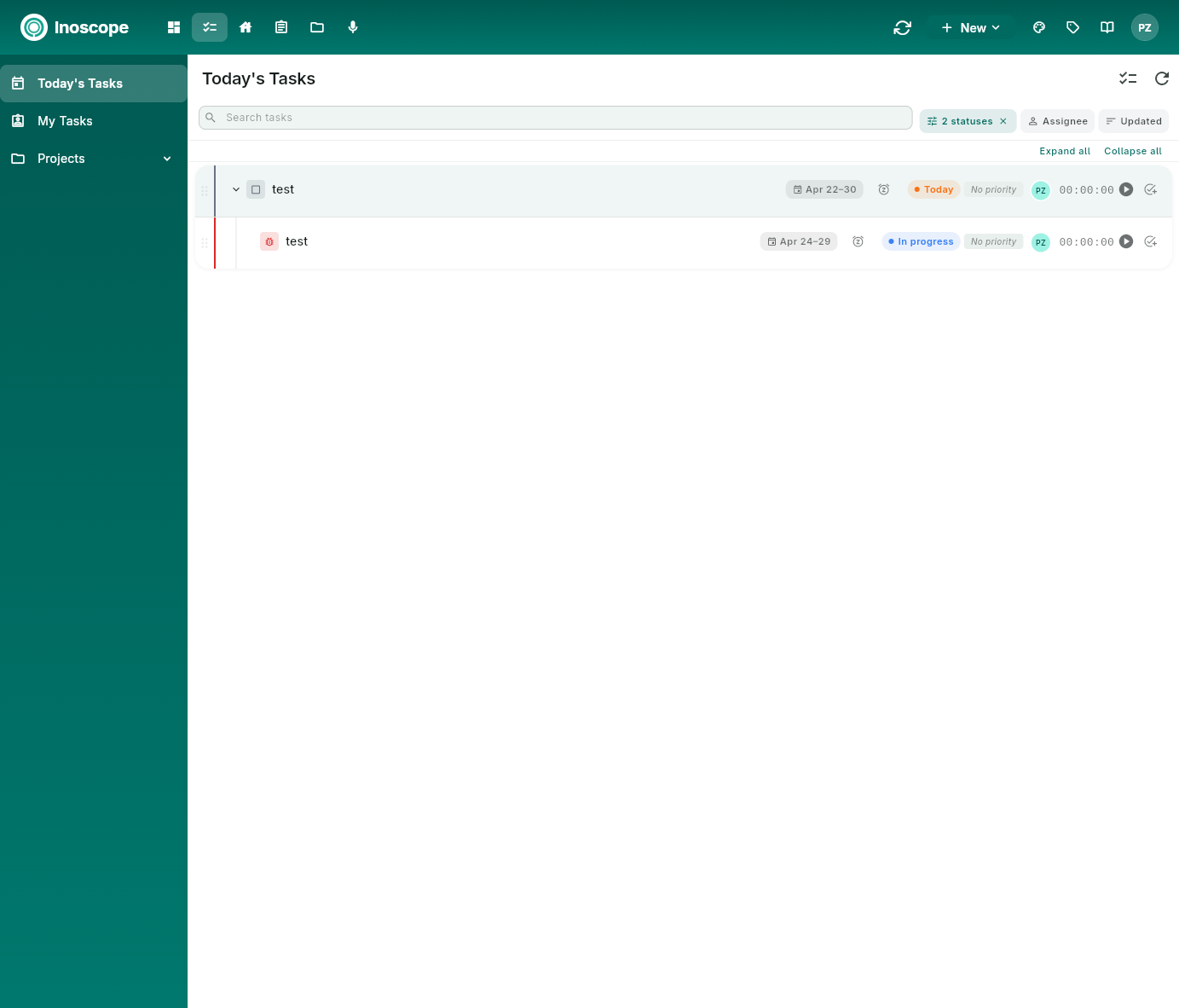
Layout
Pulse has a sidebar with three sections:
| Section | What It Shows |
|---|---|
| Today's Tasks | Tasks you've marked for "Today" — your daily focus list |
| My Tasks | All tasks assigned to you across every project |
| Projects | Expandable list of projects you have access to |
The right panel shows the contents of the selected section, plus a Refresh (↻) icon and view-mode toggles in the top-right of each list.
Today's Tasks
The default view when you open Pulse. It collects every task whose status is set to Today, regardless of which project they live in, so you can see a single daily focus list across all your work. Each row carries the same controls as the project List view — date range, reminder, status pill, priority, assignee, and timer — so you can run a working session straight from here.
If nothing is marked for today, you'll see an empty state — set a task's status to "Today" from any project to populate it.
My Tasks
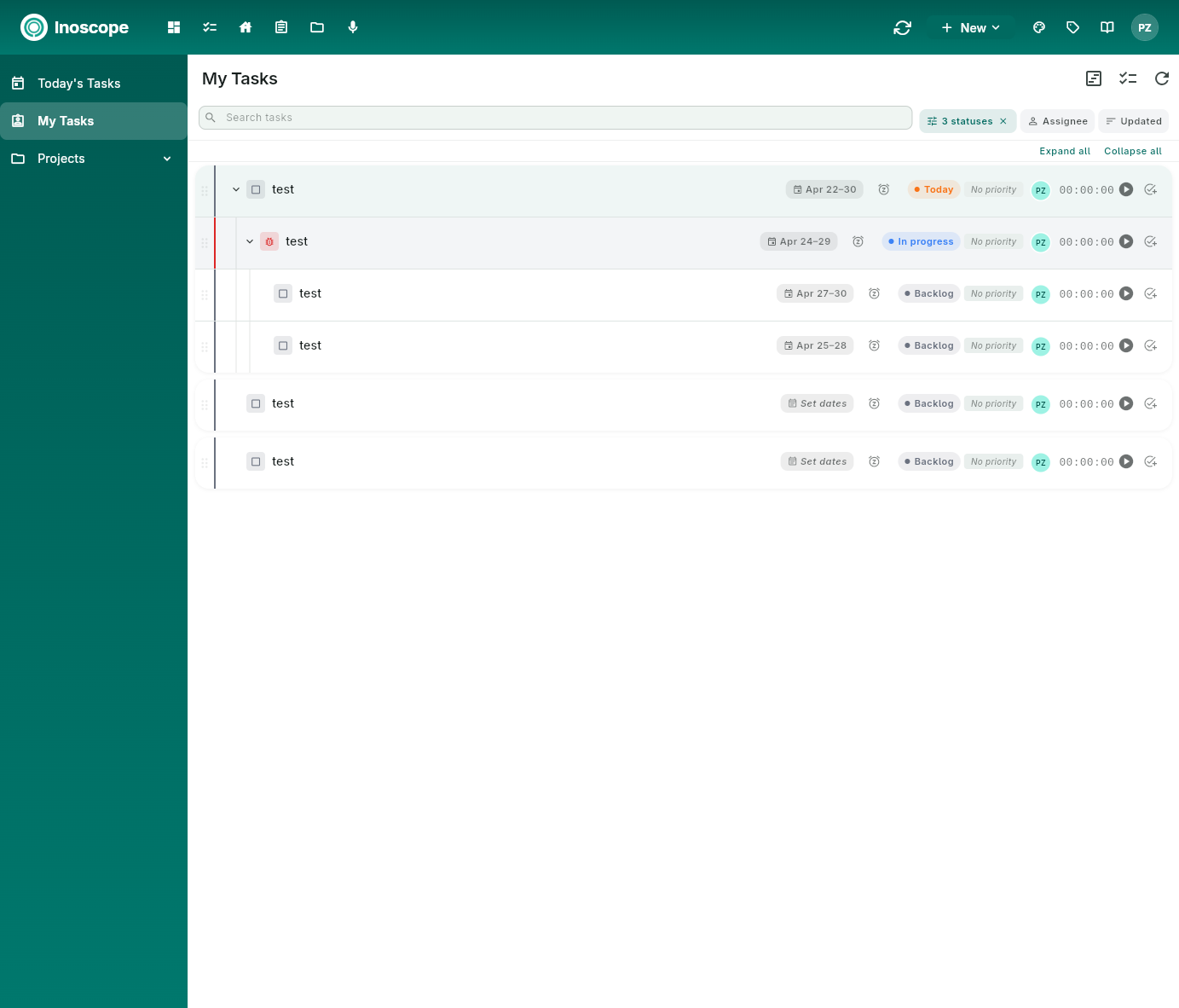
Lists every task assigned to you across every project. The hierarchy is preserved — parents expand to reveal sub-tasks — and the same row controls are available (dates, status, priority, assignee, timer). Use this when you want a complete personal backlog rather than today's focus.
Projects
Click Projects in the sidebar to expand the project list, or click into a project card to open it.
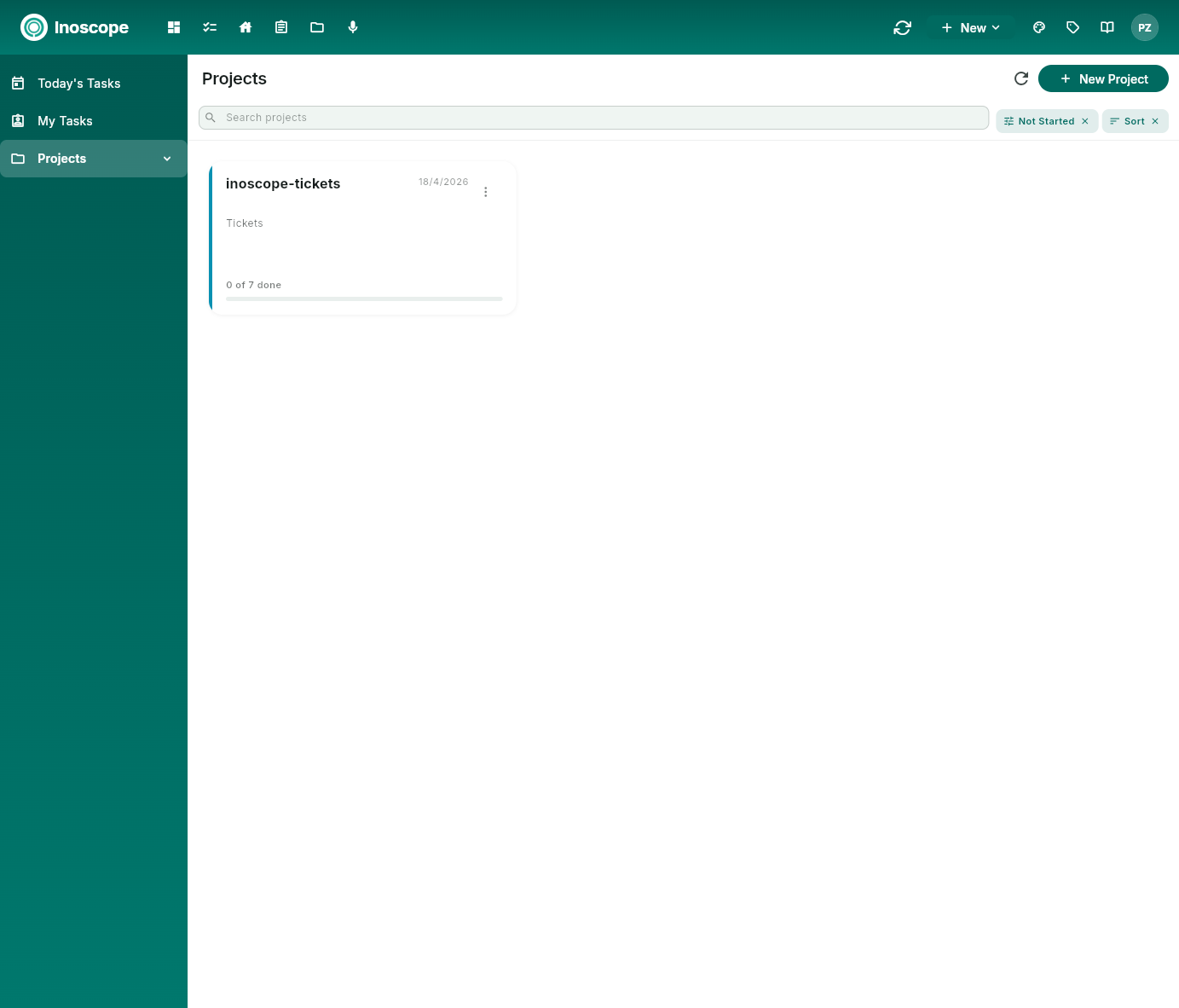
| Control | What it does |
|---|---|
| Search projects | Filter the project list by name. |
| Status filter (e.g. Not Started) | Show only projects in the selected status. |
| Sort | Order projects by date or name. |
| + New Project | Create a new project. |
Each project card shows the project name, last-modified date, a short description, and a progress indicator (e.g. 0 of 7 done).
Inside a Project
Open a project to reach the project workspace. A back arrow returns you to the project list, and the project name sits in the header. Below it is a tab strip with seven views over the same set of tasks — pick the one that fits how you want to think about the work.
| Tab | What it does |
|---|---|
| Overview | Editable name, status, progress, description, team, and slug for the project itself. |
| List | Hierarchical task list with inline status, dates, priority, assignee, and timer. |
| Board | Kanban board grouped by status, epic, or sprint. |
| Flow | Calendar / timeline view of scheduled tasks. |
| Gantt | Time-phased bar chart with dependency links between tasks. |
| Files | Every file attached to any task in the project. |
| Team | Members of this project and their roles. |
Overview
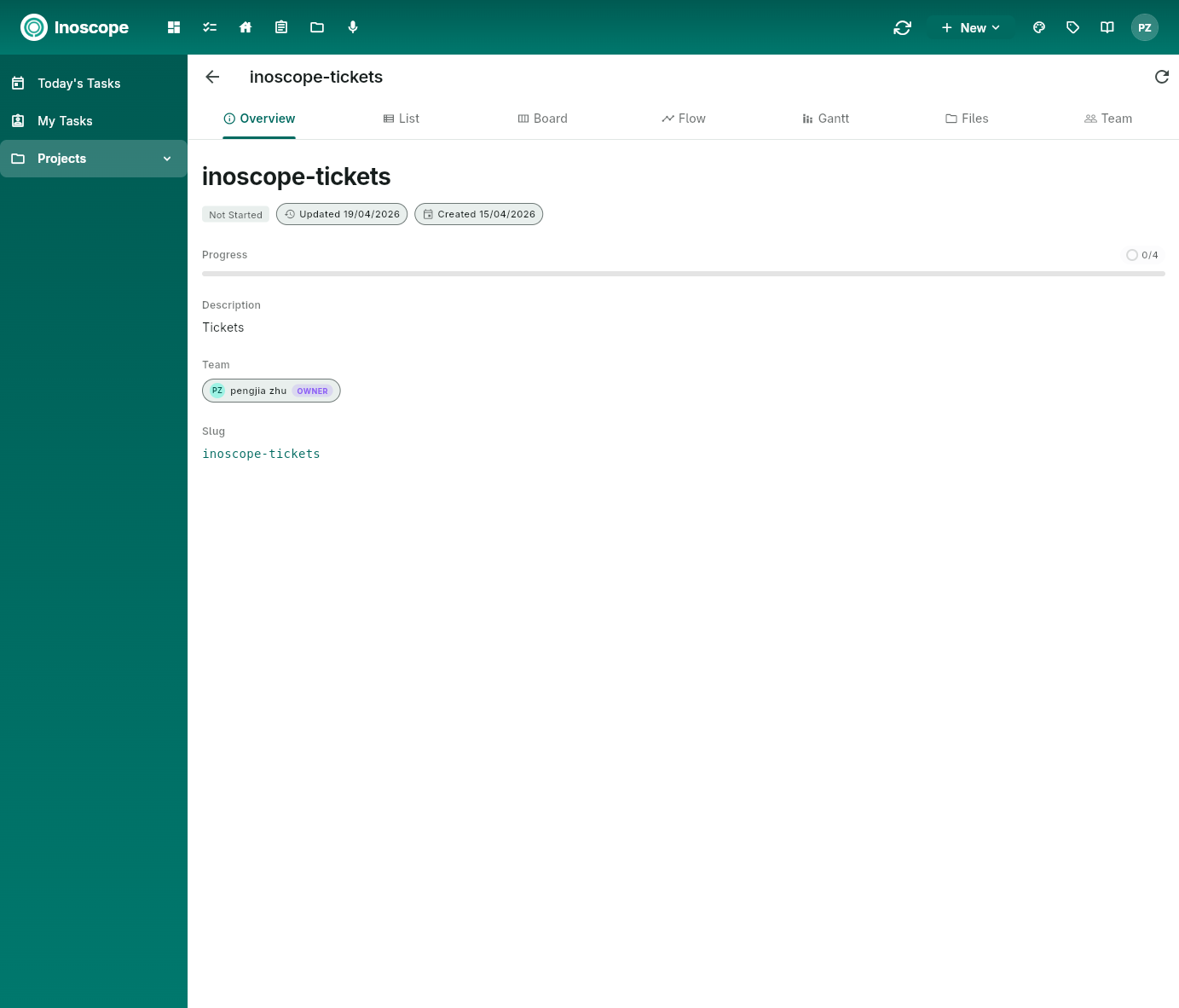
The Overview tab is your project header. Click any field to edit it inline:
- Name — title shown across Pulse and on every task breadcrumb.
- Status badge — Not Started, In Progress, Completed, etc.
- Updated / Created dates — auto-maintained.
- Progress — rolled up from the completion state of the project's tasks.
- Description — markdown body for goals, links, and context.
- Team — owners, admins, editors, viewers; role chip shown next to each member.
- Slug — short identifier used in URLs and references.
List
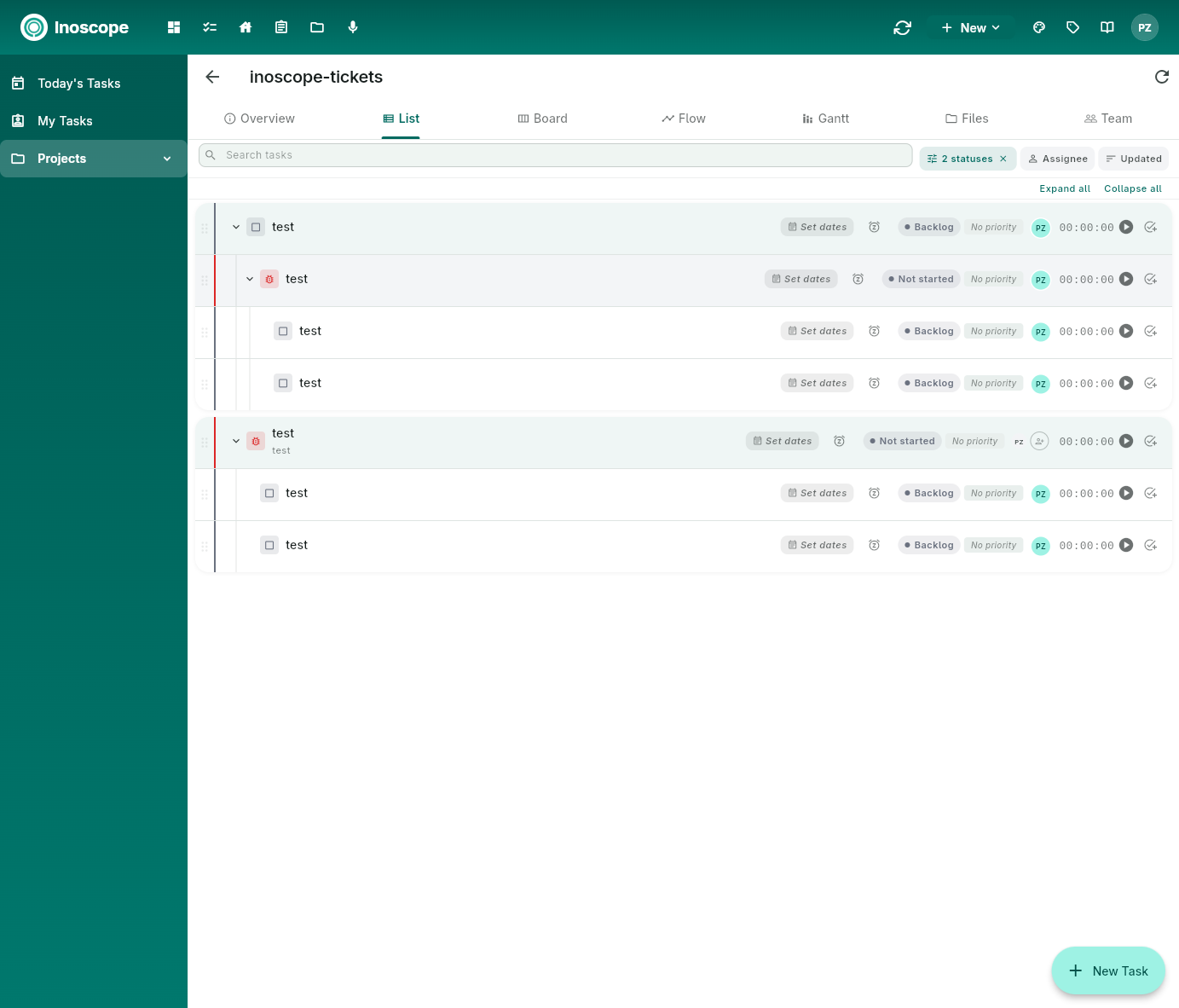
The List tab is the day-to-day working view. Tasks are shown as a tree — parents expand to reveal sub-tasks. Each row exposes:
- Drag handle to reorder or re-parent.
- Type icon (Task, Bug, Epic, Sprint).
- Title with inline edit.
- Set dates / reminder bell for scheduling.
- Status pill (Backlog, Today, In Progress, Review, Done…).
- Priority chip.
- Assignee avatar.
- Timer for tracking elapsed work.
Use the Search, 2 statuses, Assignee, and Updated filters above the table to slice the list. Expand all / Collapse all on the right toggle the entire tree, and + New Task at the bottom-right adds a top-level task.
Board
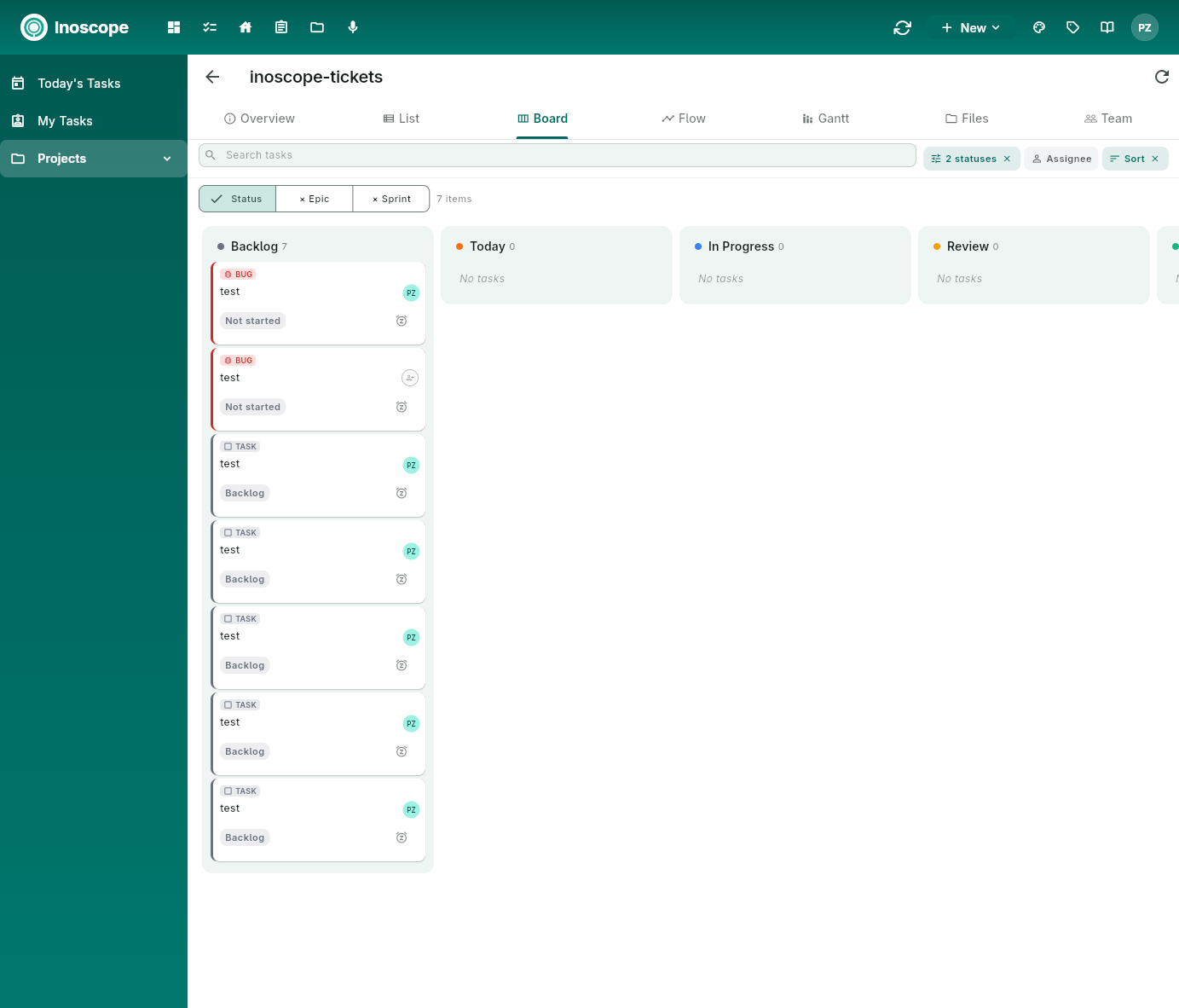
The Board is a kanban view of the same tasks. Switch the grouping at the top-left between Status, Epic, and Sprint to slice the same data different ways. Drag a card between columns to update its status (or epic / sprint, depending on the grouping). Each card shows type, title, status pill, and assignee.
Flow
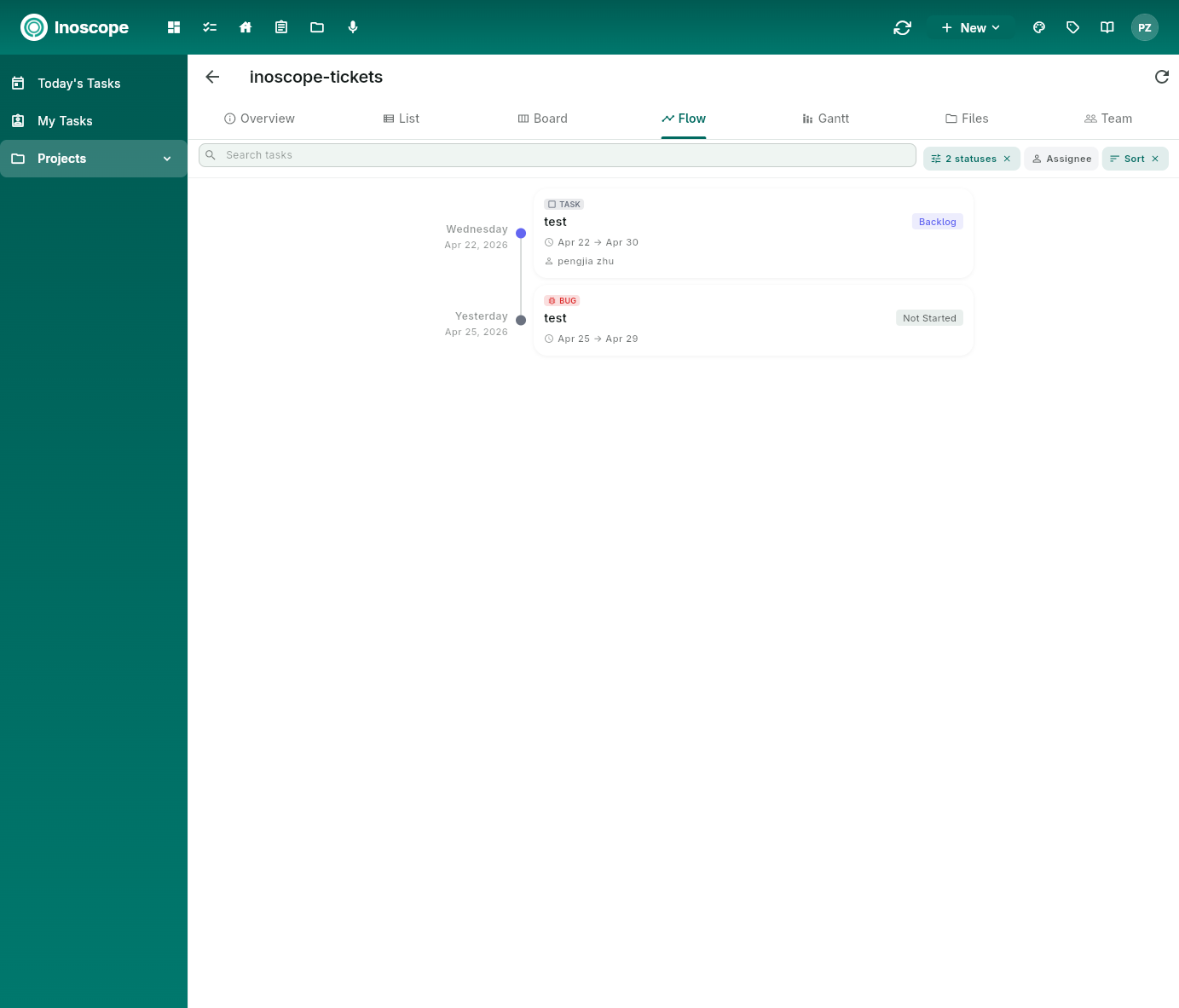
The Flow tab is the day-by-day timeline view. Each scheduled task appears as a card under its day (e.g. Wednesday — Apr 22, 2026) with type, title, status, date range, and assignee. Tasks without a start or end date are hidden — set dates from List or Gantt to surface them here.
Gantt
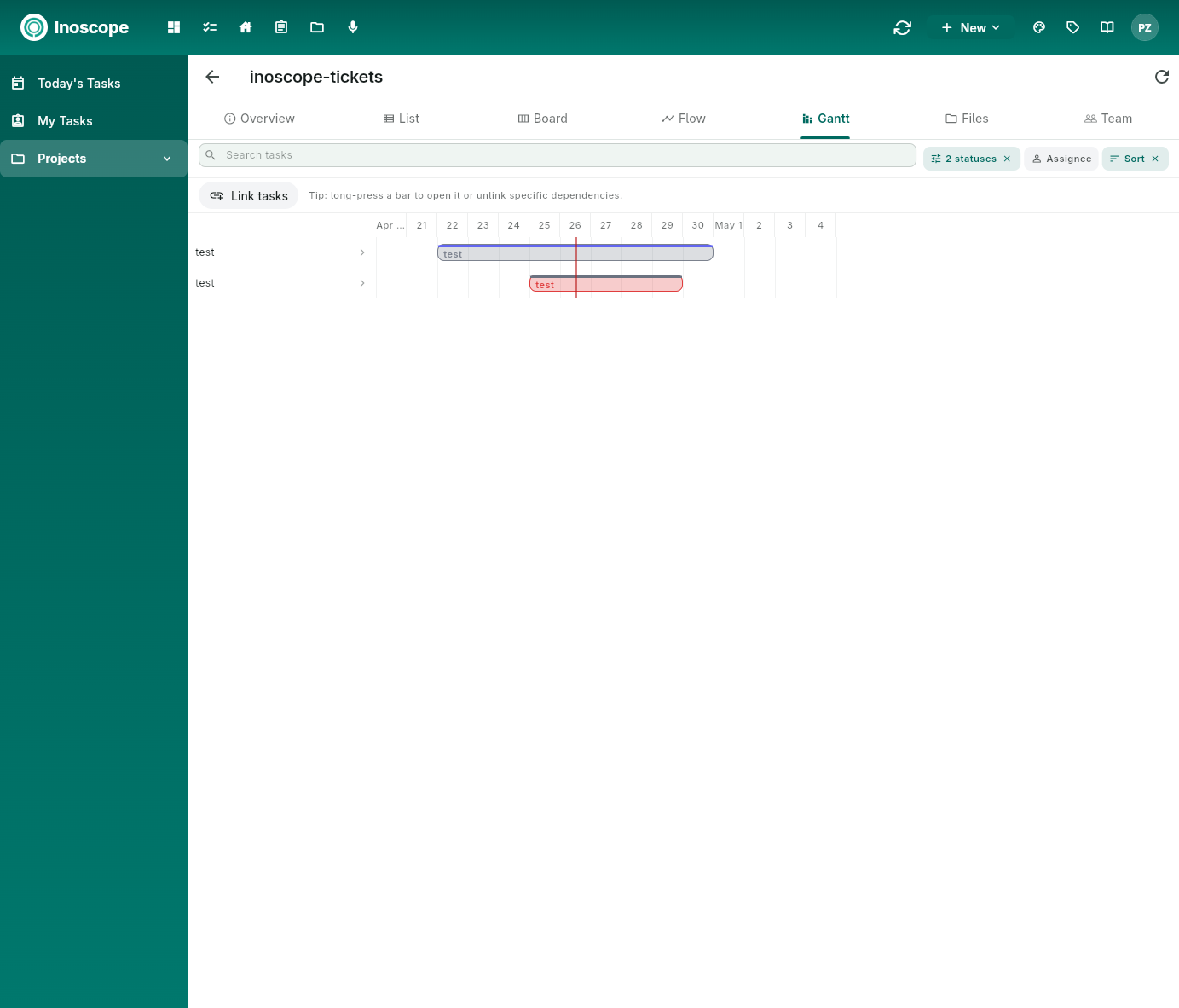
The Gantt tab plots tasks as horizontal bars across a calendar. Drag a bar's edges to change start/end dates, drag the bar itself to shift the schedule, and use Link tasks to draw dependency arrows between bars. Long-press a bar to open it or unlink a specific dependency.
Files
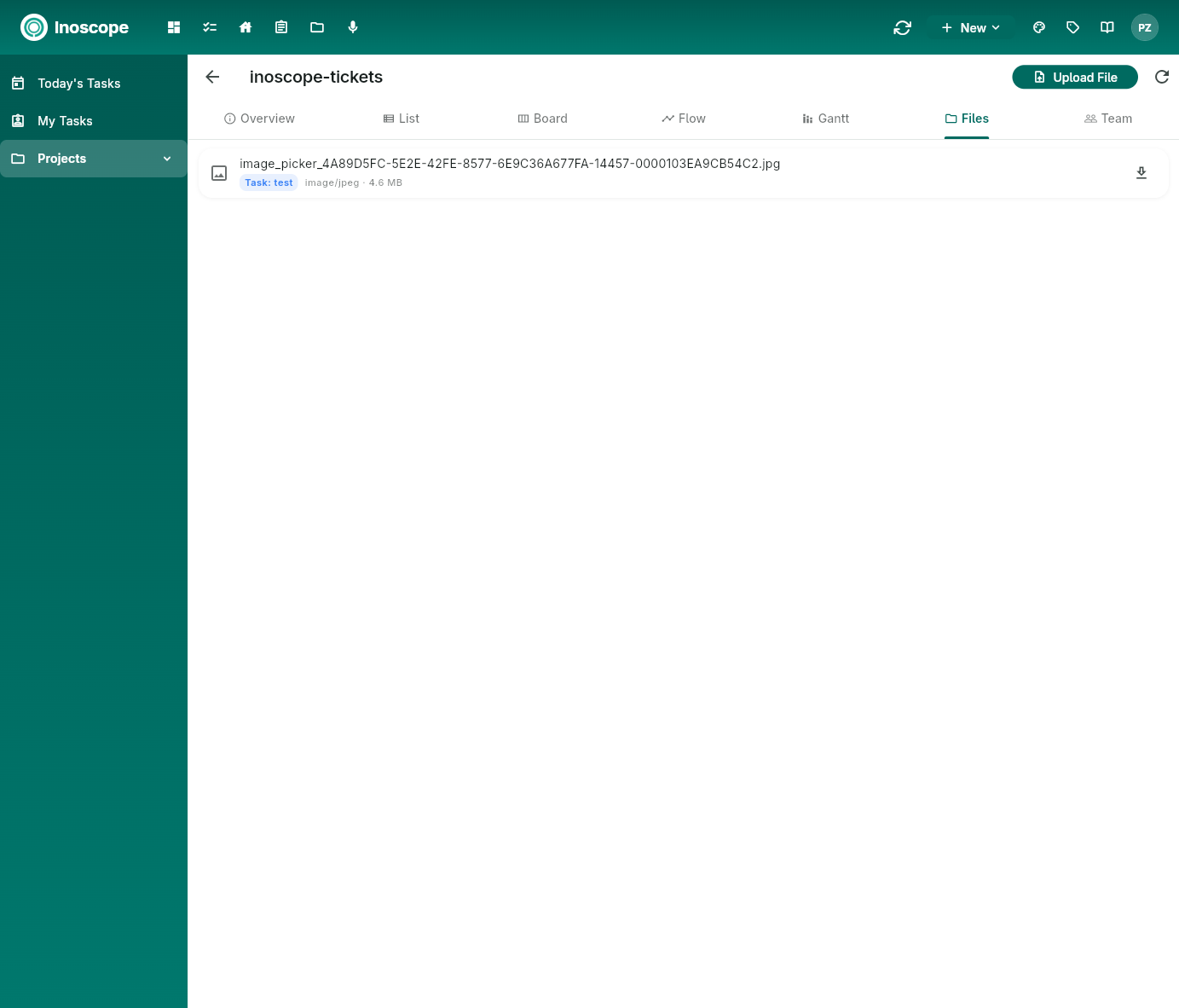
Files lists every attachment uploaded to any task in the project. Each row shows the file name, the task it belongs to (e.g. Task: test), MIME type, and size. Upload File at the top-right adds a file directly to the project. Click a row to open it, or use the download icon on the right.
Team
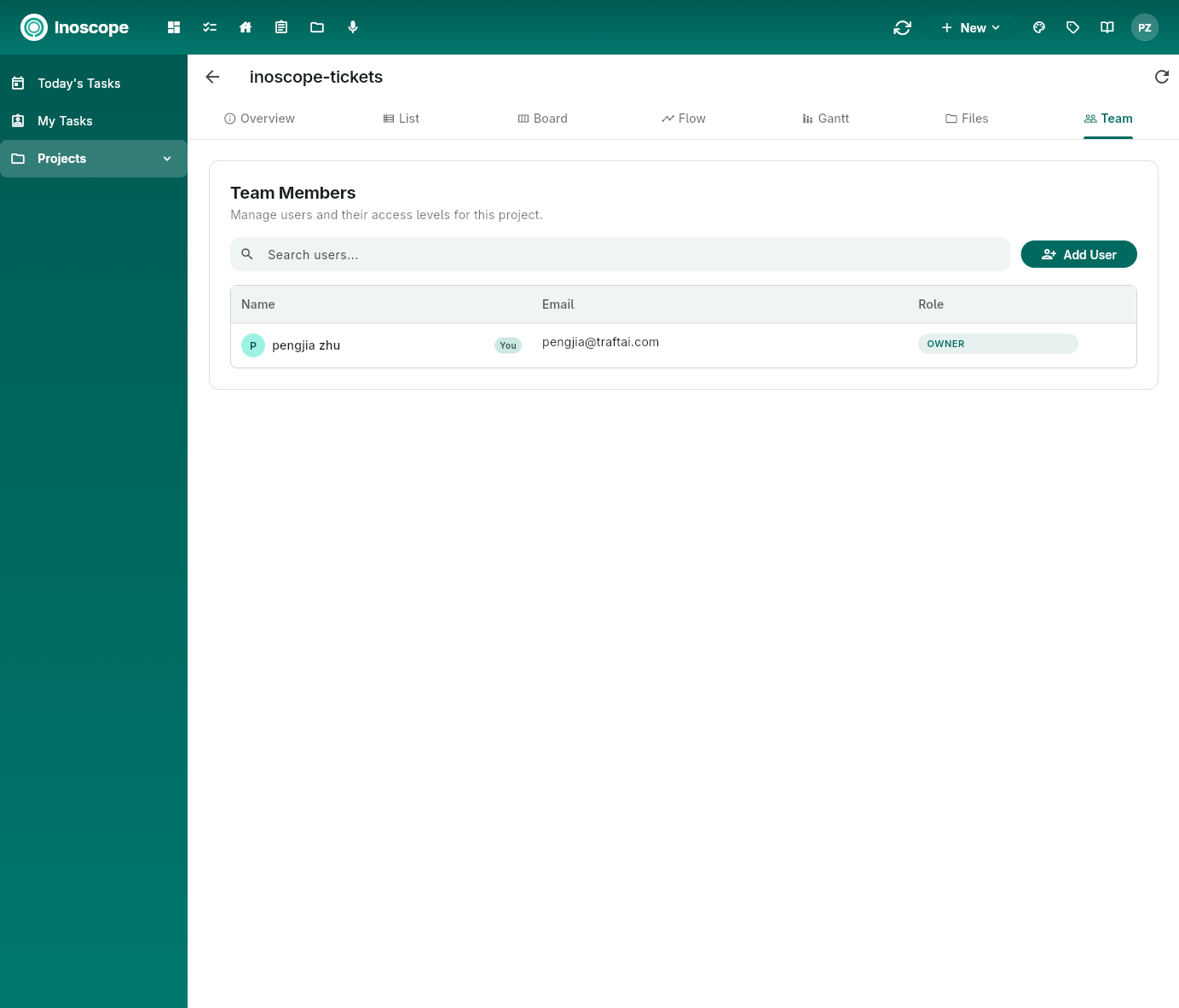
The Team tab manages who can see and edit the project. Use Add User to invite by email and pick a role (Owner, Admin, Editor, Viewer, Contributor). The You chip flags your own row.
Task Detail
Click any task in the List, Board, Gantt, or Flow tab to open its detail. Pulse uses a split pane: the list stays on the left, the task opens on the right.
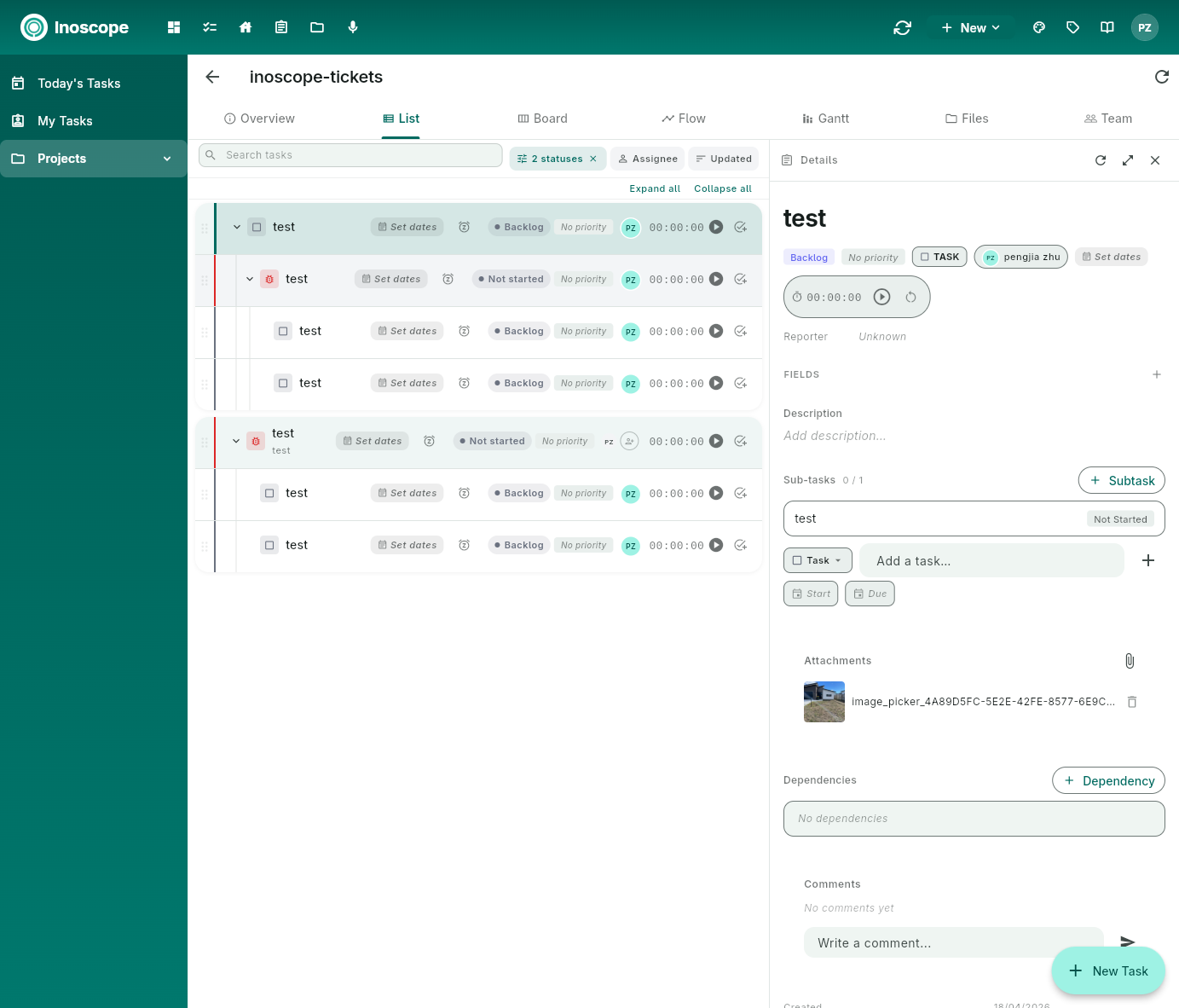
The detail pane has three controls in its top-right:
- Refresh (↻) — re-fetch the task.
- Open full page (↗) — promote the pane to a full-screen task view (below).
- Close (×) — collapse the pane and return to the list.
Full task view
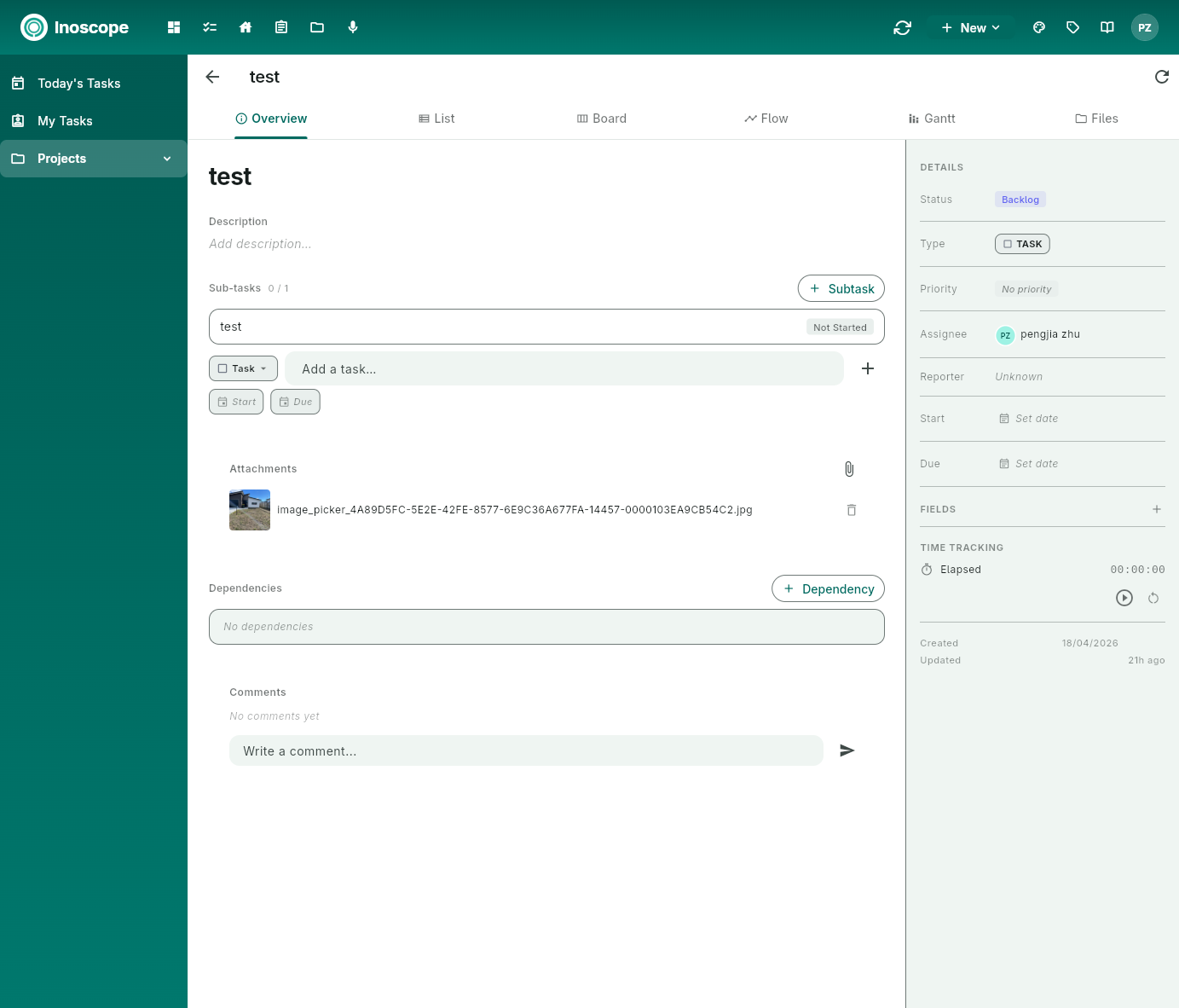
A task has the same tab strip as a project — Overview, List, Board, Flow, Gantt, Files — because every task can have its own sub-tasks. The tabs apply to the task's children, so you can use a task as a mini-project.
The Details sidebar on the right is the task's metadata:
| Section | Fields |
|---|---|
| Status | Current workflow status (Backlog, Today, In Progress, Review, Done…). |
| Type | Task, Bug, Epic, Sprint. |
| Priority | None, Low, Medium, High, Urgent. |
| Assignee | The single owner accountable for the task. |
| Reporter | Who filed it. |
| Start / Due | Dates that drive Flow and Gantt placement. |
| Fields | Custom fields (text, number, dropdown, etc.) that you add per project. |
| Time Tracking | Elapsed timer with start/reset controls. |
| Created / Updated | Audit trail. |
The body of the Overview tab holds the Title, Description (markdown), Sub-tasks with quick-add, Attachments, Dependencies, and a Comments thread.
Sub-tasks via tabs
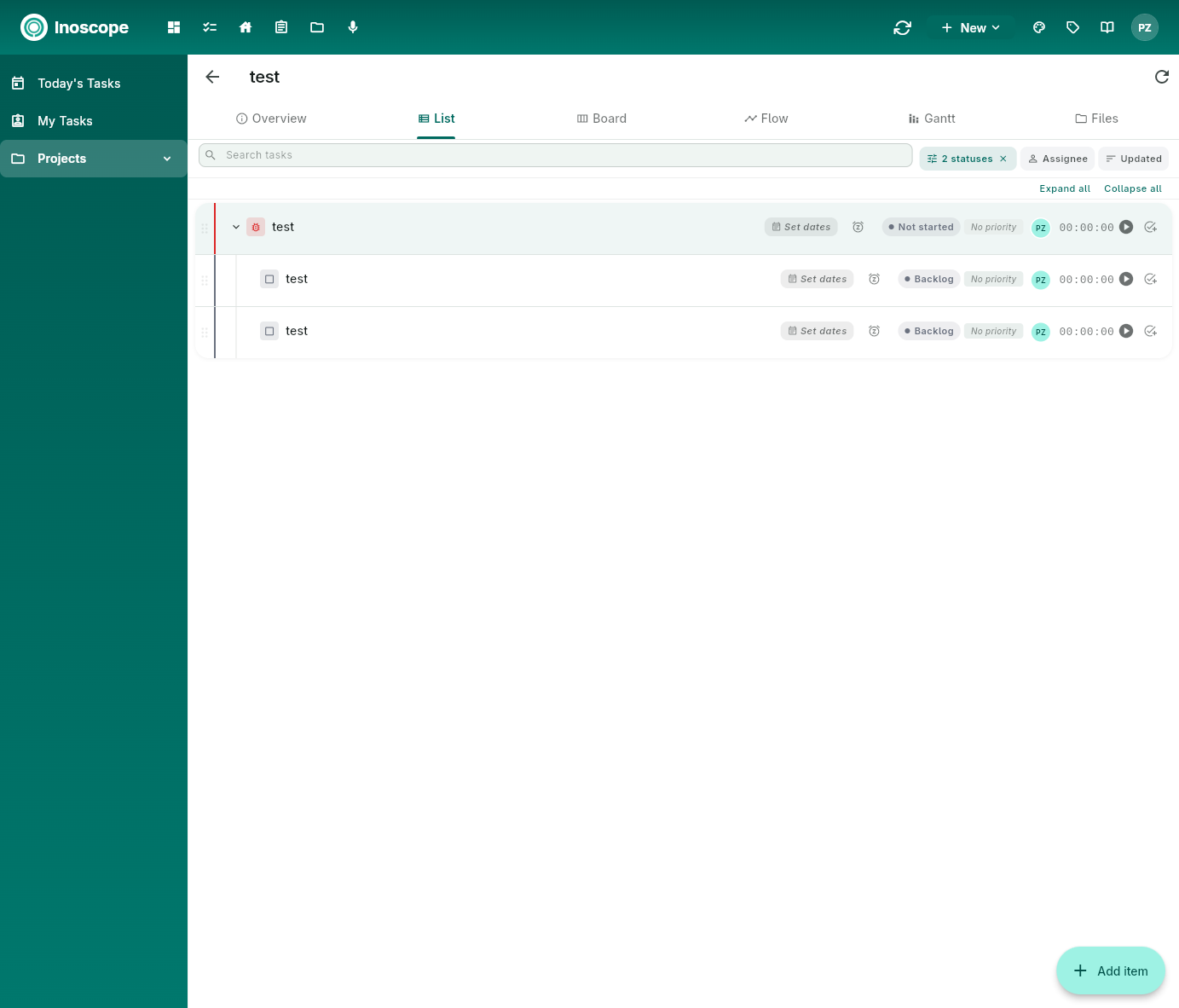
Switch to List, Board, Flow, Gantt, or Files on the task to view its sub-tasks the same way you'd view project tasks. The hierarchy is recursive: a sub-task can itself be opened, get its own sub-tasks, and so on. + Add item at the bottom-right adds a sub-task in the current view.
Pulse and Bee
Pulse projects and tickets live in the same workspace as your assessments, which sets up Bee to work directly on Pulse — but the integration is not live yet.
Coming soon: Pulse is being wired into the Inoscope orchestrator agent, so Bee will start arranging tasks for you automatically — for example:
- File a follow-up ticket from a chat with Bee.
- Triage incoming work into the right project.
- Sequence follow-ups from assessments and break large tickets into sub-tasks.
- Propose a daily plan based on priorities, due dates, and dependencies, and mark tasks Today in bulk for a working session.
Stay tuned.
Next Steps
- Dashboard — return to the assessments overview
- Inoscope AI Operator — let Bee create and update Pulse tickets for you