General Assessment
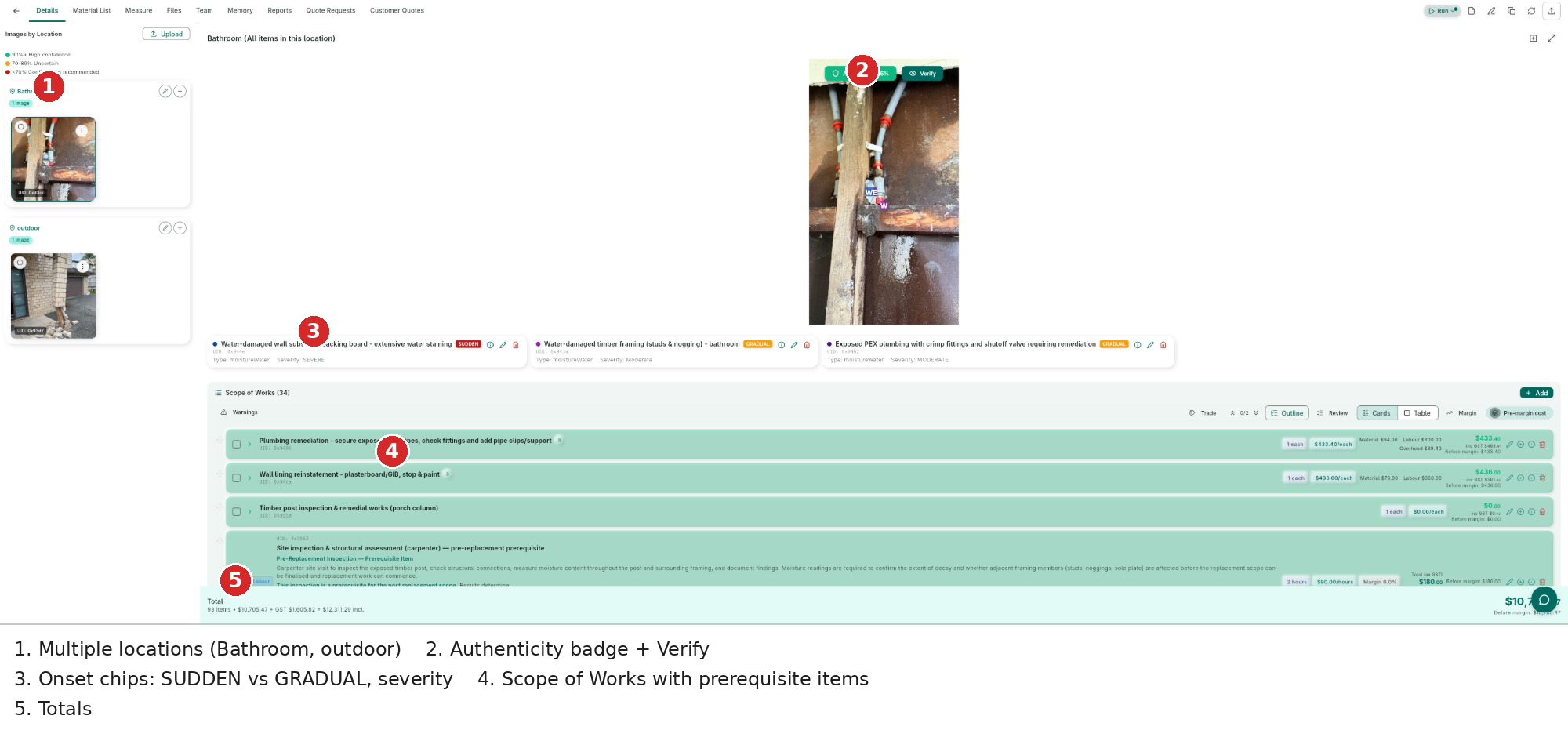
General Work Assessment processes your inspection photos to scope maintenance, renovation, and repair work. Unlike Damage Assessment, it does not produce damage items — it goes directly from your photos to a costed work scope with line items for materials, labour, and equipment.

Assessment Layout
General Work Assessments share the same three-panel layout as Damage Assessments:
- Left panel — Image thumbnails organized by location group
- Center panel — Main workspace with four tabs
- Right panel — Inoscope AI Operator
| Tab | Contents |
|---|---|
| Details | Uploaded images, Scope of Works line items with quantities and costs |
| Measure | Drawing tools overlaid on photos for annotating dimensions |
| Files | All uploaded images and documents |
| Team | Team members and access roles |
The key difference from Damage Assessment: the Details tab shows Scope of Works items directly — there is no damage items section.
Running a General Assessment
Run processes all uploaded images automatically, end-to-end, without interruption. It is the fastest way to go from photos to a costed work scope. Use Inoscope AI Operator to refine results, ask questions, or add items after Run completes. For a full comparison, see Run vs Inoscope AI Operator.
- Open a General Work Assessment with uploaded images.
- Click the Run button.
- The prompt dialog appears:
- Optionally enter a custom prompt to focus the AI on specific work (e.g., "Scope the bathroom retiling and vanity replacement").
- Leave the prompt empty to generate a general work scope from all uploaded images.
- Click Run to start.
- A processing indicator shows real-time progress as each step completes.
Run processes all images and any uploaded documents. Each image is assessed to understand what work is required, and the results are consolidated into a single set of line items.
The 5-Step Run
| Step | Name | What It Does |
|---|---|---|
| 1 | Create Work Scope | Processes all submitted photos and documents to identify the required work — creates line items for materials, labour, and equipment. No costs at this stage. |
| 2 | Estimate Quantities | Calculates quantities for every material by checking all submitted information — photos, documents, and drawings. Determines the measurement of each area and repair area according to your pre-defined estimation rules, ensuring no item is left without a quantity |
| 3 | Estimate Costs | Prices each item — materials, labour, equipment hire, and more — prioritising your calibrated user data first, then curated Inoscope data, then wider available sources such as internet and research data |
| 4 | Calculate Totals | Computes group subtotals and the overall assessment total, then reports a final summary |
| 5 | Validate | Checks whether pricing matches industry-common data against local and national benchmarks, verifies material usage and fitness for purpose, cross-references measurements, and checks all assumptions — any issues are flagged as warnings for your review |
What the AI Produces
Run produces a hierarchical set of work scope line items grouped by trade or work area. Each leaf item is one of three types:
| Item Type | Description |
|---|---|
| Material | A physical product or supply required for the work |
| Labour | A trade or labour activity required to complete the work |
| Equipment | Plant, tools, or hired equipment required on site |
GROUP items act as parent containers. The AI creates GROUP parents automatically — they are not individually priced; their totals roll up from their children.
For a full reference on line item types, the hierarchy, editing fields, and cost estimation, see Line Items and Costing.
Reviewing and Editing Line Items
After Run completes, the Details tab shows the generated line items with quantities, unit rates, and totals.
- Review each group and its children to confirm the scope is complete and accurate.
- Click any line item to open the edit dialog and adjust description, quantity, unit, or cost.
- Add missing items using the Add Line Item button within any group.
- Delete items that do not apply using the item's menu.
For full editing instructions, see Line Items and Costing.
Snapshots

Snapshots are Inoscope's pricing version management and audit trail — all in one. Each snapshot creates a read-only, unmodifiable record of the assessment at that point in time. Users can define their own uses for snapshots, such as:
- Changing a calculation method and comparing the result before and after
- Running a different pricing scenario alongside the original for comparison
- Preserving the current state before a major re-pricing or re-run
To revert to a previous snapshot, simply ask the Inoscope AI Operator to revert back. This will apply the snapshot's data as a new change — meaning the revert itself is recorded in the audit trail, so every action remains fully traceable.
Creating a snapshot:
- Click the Snapshots button in the header.
- Click + Create Snapshot in the dialog.
- A "Snapshot created successfully" confirmation appears and the snapshot is added to the list with a timestamp.
Viewing a snapshot:
- Open the Snapshots dialog.
- Click any snapshot in the list (10 per page, ordered newest first).
- The snapshot opens with a "Snapshot - Read Only" banner at the top of the screen. Editing is disabled, the Run button is hidden, and Inoscope AI Operator is not available.

- Use the back arrow to return to the live assessment.
Tips for Better Results
- Good lighting: Well-lit photos allow the AI to read surface conditions, material types, and extent of work accurately.
- Coverage: Photograph every area that needs work, including contextual shots to show scale and access conditions.
- Multiple angles: Capture the same area from different angles to help the AI estimate quantities more accurately.
- Specific prompts: The more specific your prompt, the more targeted the scope. For example, "Scope the roof repairs including ridge capping and flashing" produces a more precise output than a blank prompt.
- Documents: Upload any existing scope notes, plans, or specifications along with the photos — the AI incorporates them during quantity estimation.
- Follow-up with Inoscope AI Operator: After Run completes, use Inoscope AI Operator to ask follow-up questions, request additional items, or refine quantities interactively.