Settings
Settings is the control room for you and your company: pricing calibration, people, billing, company identity, integrations, security, AI tools, notifications and appearance. Open it from your profile card (bottom-left) → Settings. Profile Settings in the same menu opens your personal details.
Settings is a full page with a tab strip: Calibration · Users · Invites · Payments · Company · Integrations · Security · MCP Servers · Notifications · UI · About.
Profile Settings
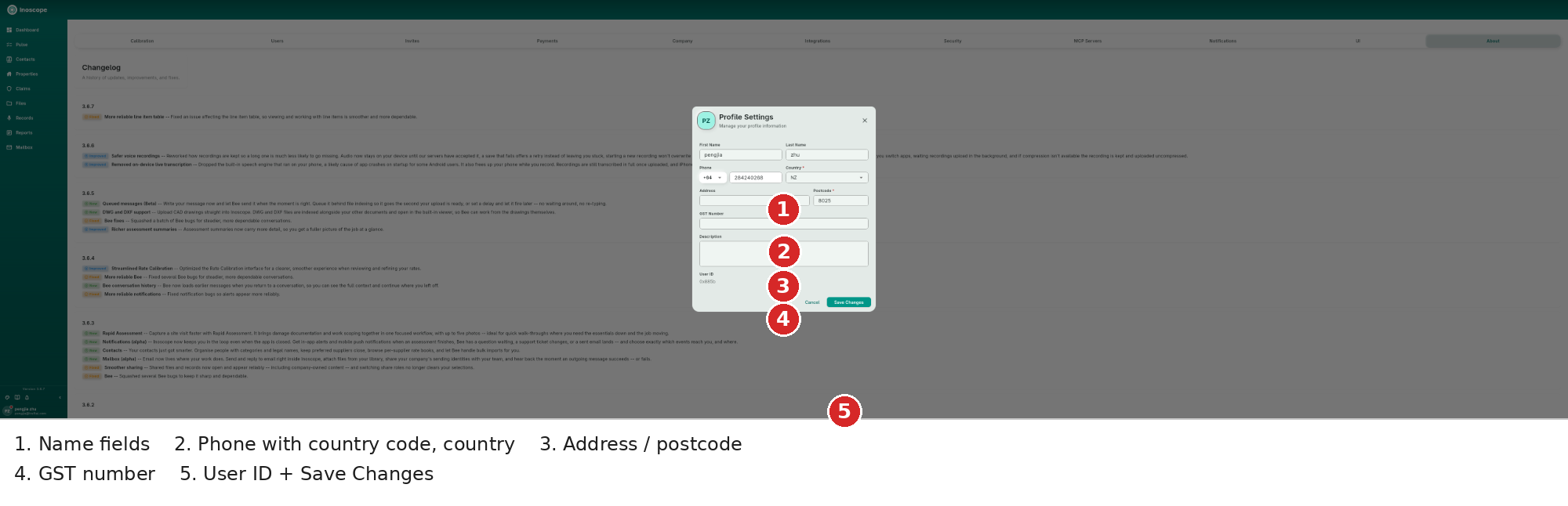
- Names — first and last, used on reports and in the team list.
- Phone & country — country-code picker included.
- Address / postcode.
- GST number — your personal tax registration.
- User ID + Save Changes — your immutable ID for support requests.
Calibration
Rate Calibration teaches Inoscope your pricing — the ~30 minutes that make assessments price themselves. The streamlined (3.6.4) wizard walks five steps: Welcome → Documents → Defaults → Instructions → Run.
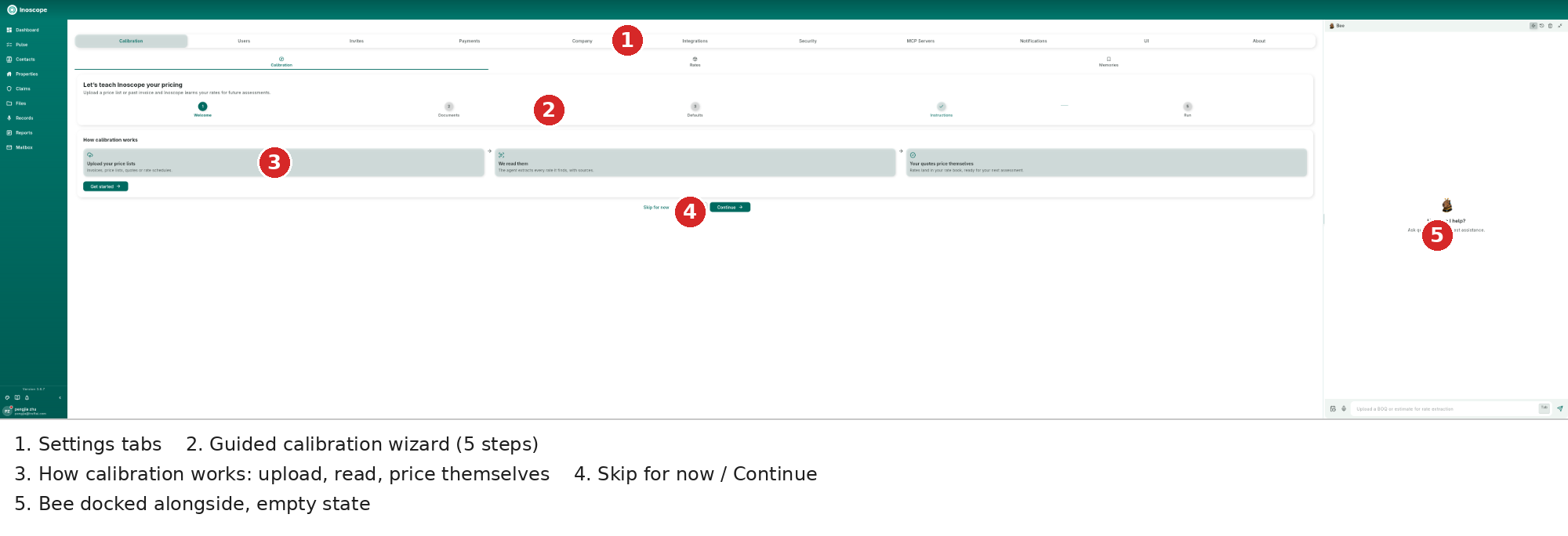
- Settings tabs — the strip across the top.
- Guided wizard — upload a price list or past invoice; the agent extracts every rate with sources; your quotes then price themselves.
- How calibration works — upload, read, price themselves.
- Skip for now / Continue — leave and return any time; the dashboard banner remembers.
- Bee docked alongside — the calibration page pairs your memory notes and rate book with a built-in chat agent (user and company level), so you can extract rates and refine preferences by chatting.
Users & Invites
Manage company members and see who invited you — see Team Collaboration.
Payments
Plans, payment methods and invoices — see Subscription & Billing.
Company
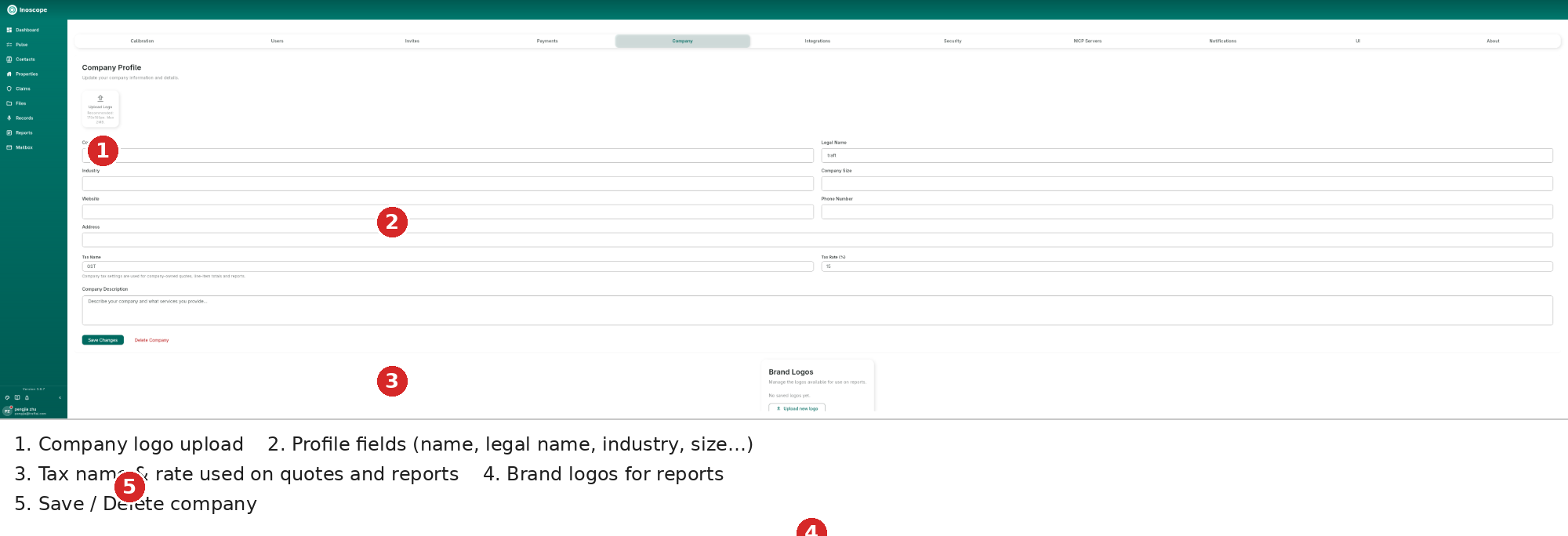
- Logo — used on reports and quotes (replacing it is now reliable).
- Profile fields — company name, legal name, industry, size, website, phone, address, description.
- Tax name & rate — e.g. GST 15%; company tax settings are used for company-owned quotes, line items and reports.
- Brand logos — manage the logos available for use on reports; upload more.
- Save / Delete company.
Integrations
Connect the tools your business runs on — Fergus, Xero, QuickBooks, MYOB. See Export & Integrations.
Security
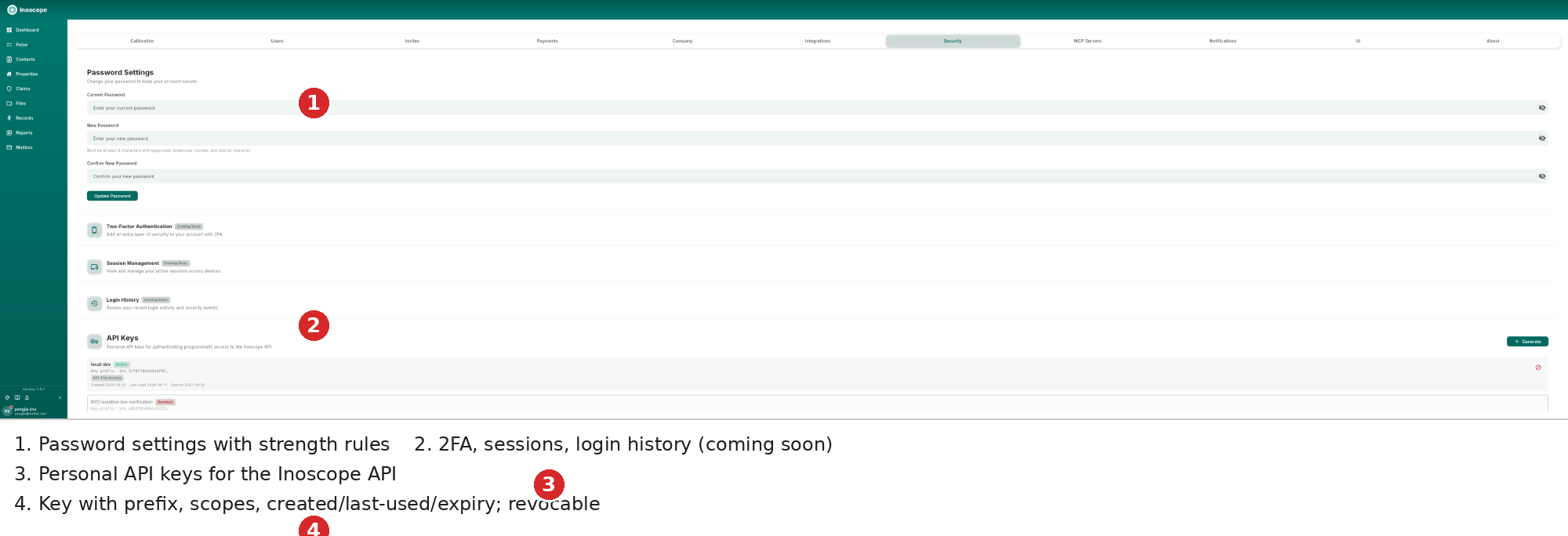
- Password settings — change with strength rules (upper, lower, number, special).
- Coming soon — two-factor authentication, session management, login history.
- API keys — Generate scoped personal keys for programmatic access (3.5.0).
- Key cards — name, status (Active/Revoked), key prefix (
inc_…), scopes (e.g.all:full-access), created / last-used / expiry; revoke with the ⊘ button.
MCP Servers
Bring your own AI tools (3.5.0): connect Model Context Protocol servers and Bee gains your integrations.
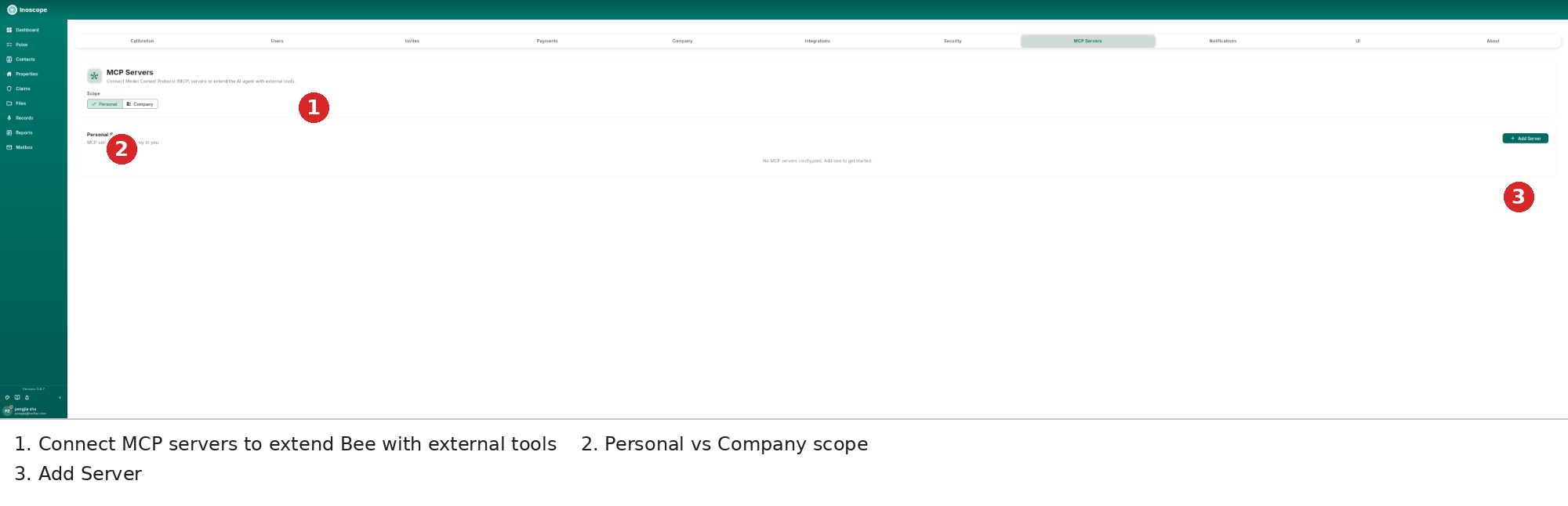
- Servers extend the AI agent with external tools.
- Scope — Personal (only you) vs Company (everyone).
- Add Server — register the endpoint; Bee picks the tools up in chat.
Notifications
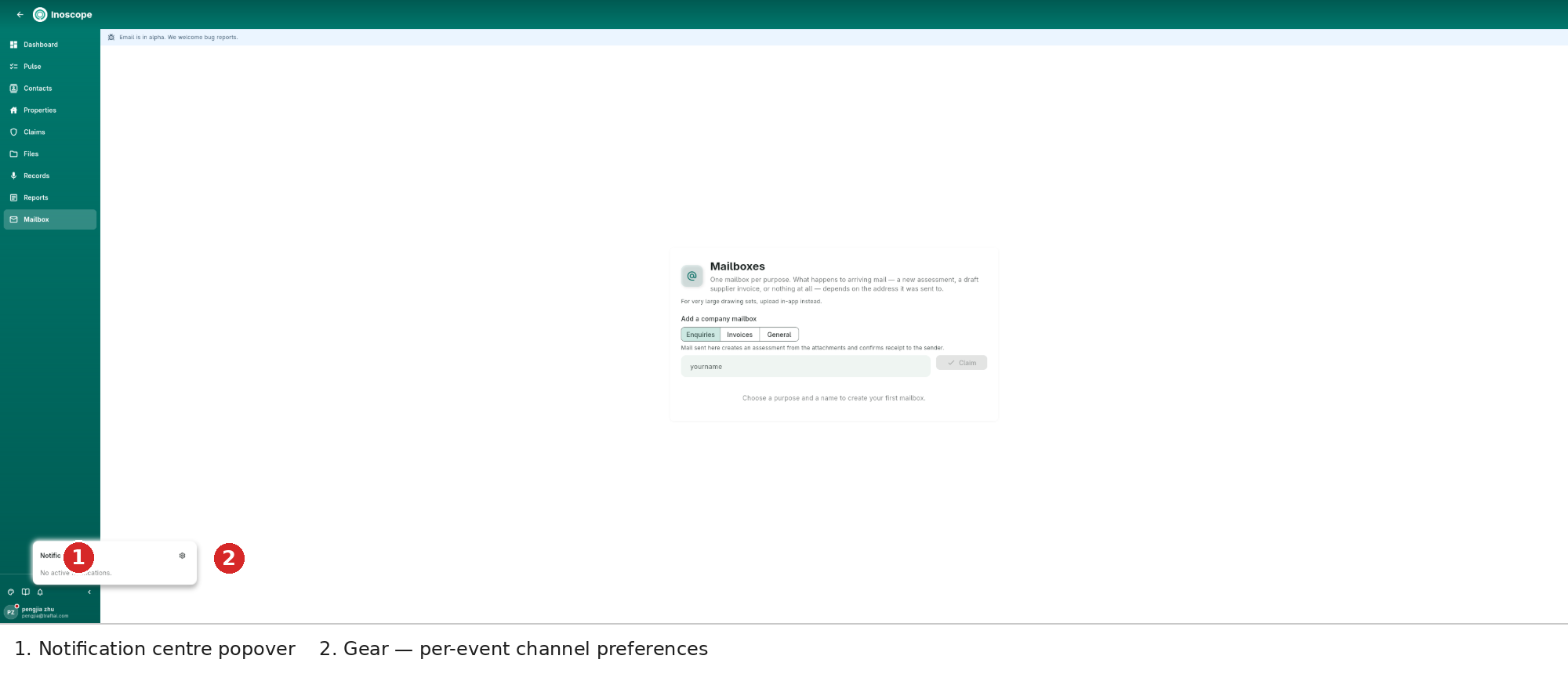
Notifications (alpha, 3.6.3) keep you in the loop even when the app is closed. The bell (bottom-left) opens the centre; the gear opens this tab.
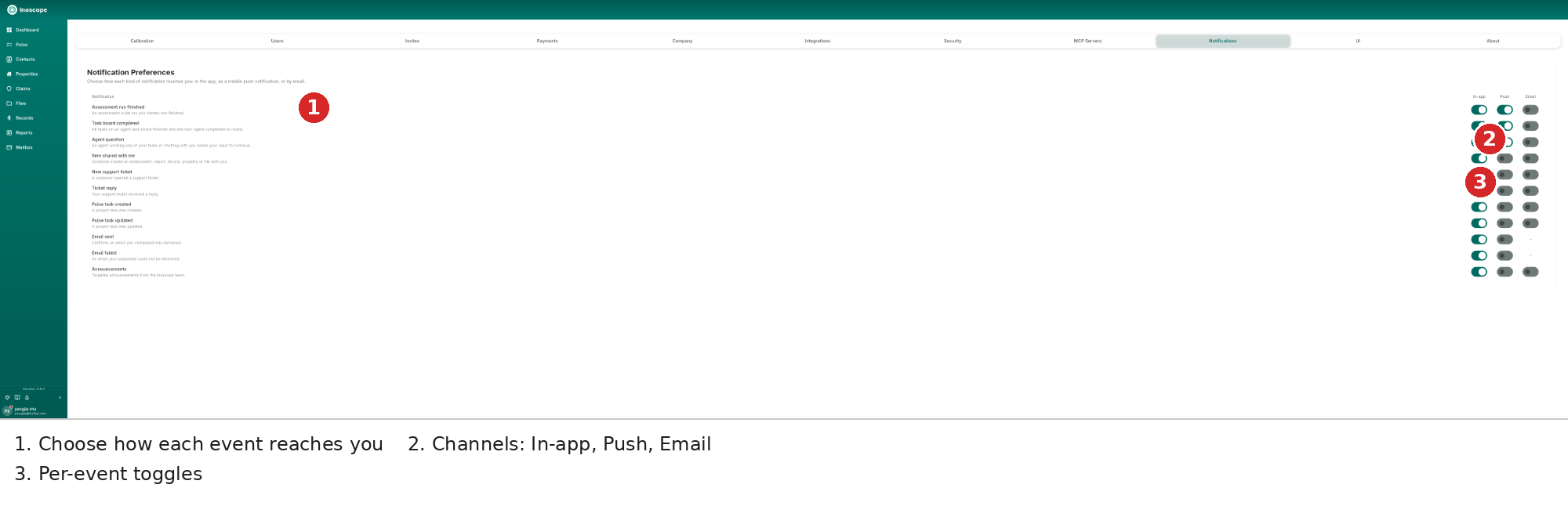
- Choose how each kind of notification reaches you.
- Channels — In-app, Push, Email columns.
- Events — assessment run finished, task board completed, agent question, item shared with me, support tickets, Pulse tasks, email sent/failed, announcements — toggle each channel per event.
UI
Appearance, in full:
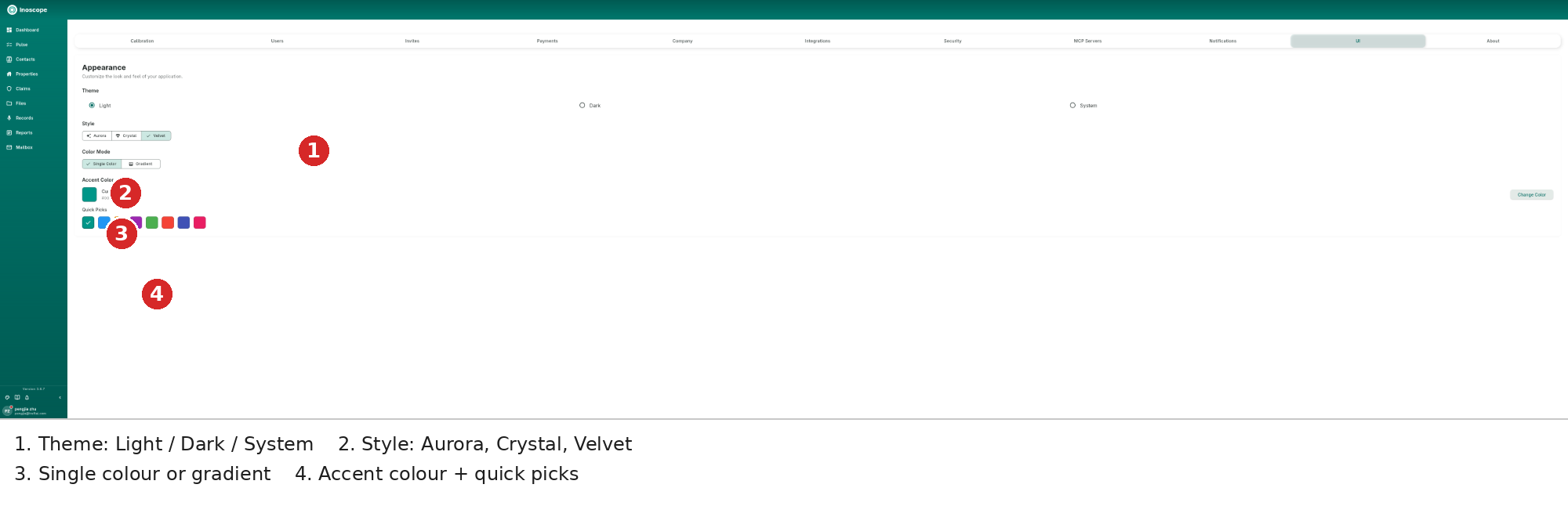
- Theme — Light / Dark / System.
- Style — Aurora, Crystal, Velvet.
- Colour mode — single colour or gradient.
- Accent colour — current hex, quick picks, or Change Color for the full picker.
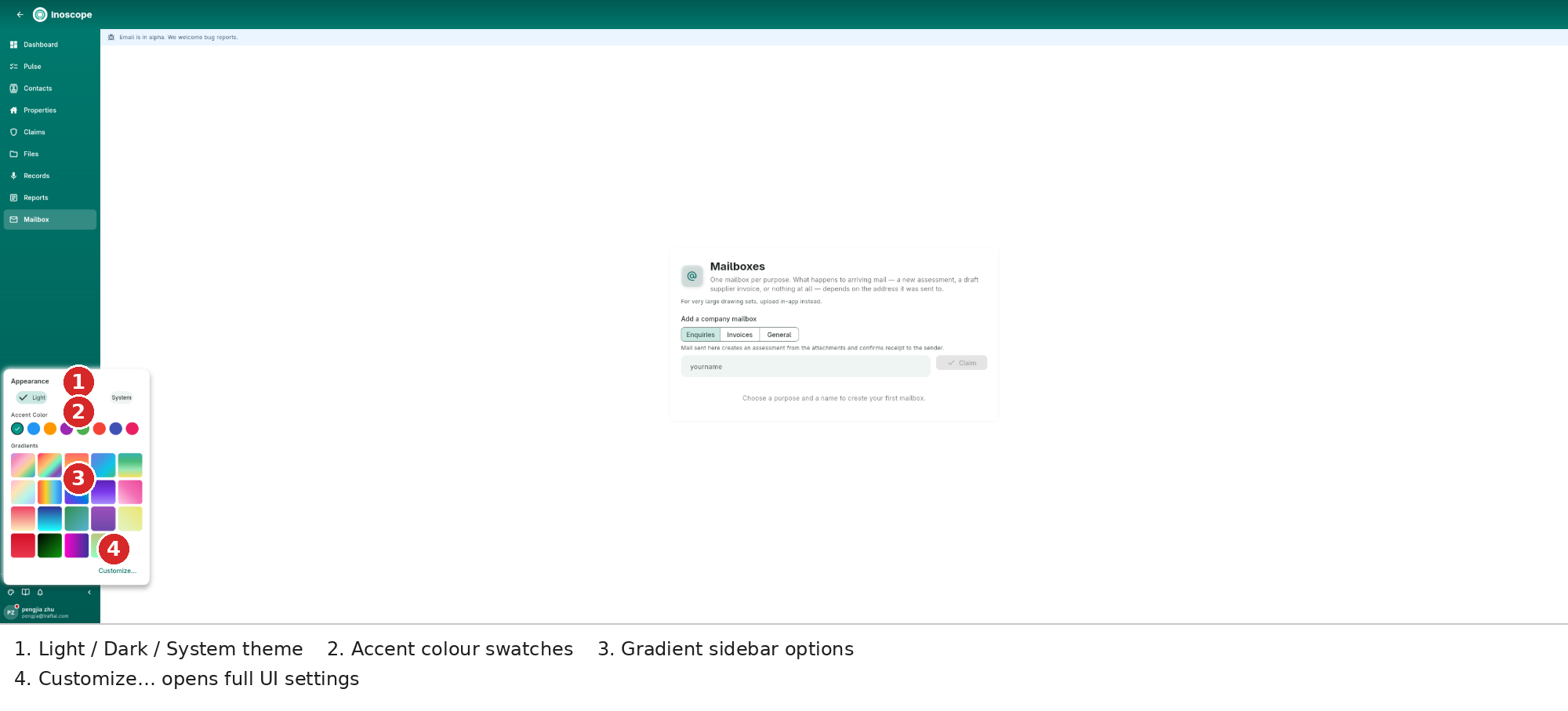
The quick popover (bottom-left Appearance button) offers the same essentials plus gradient sidebars:
About
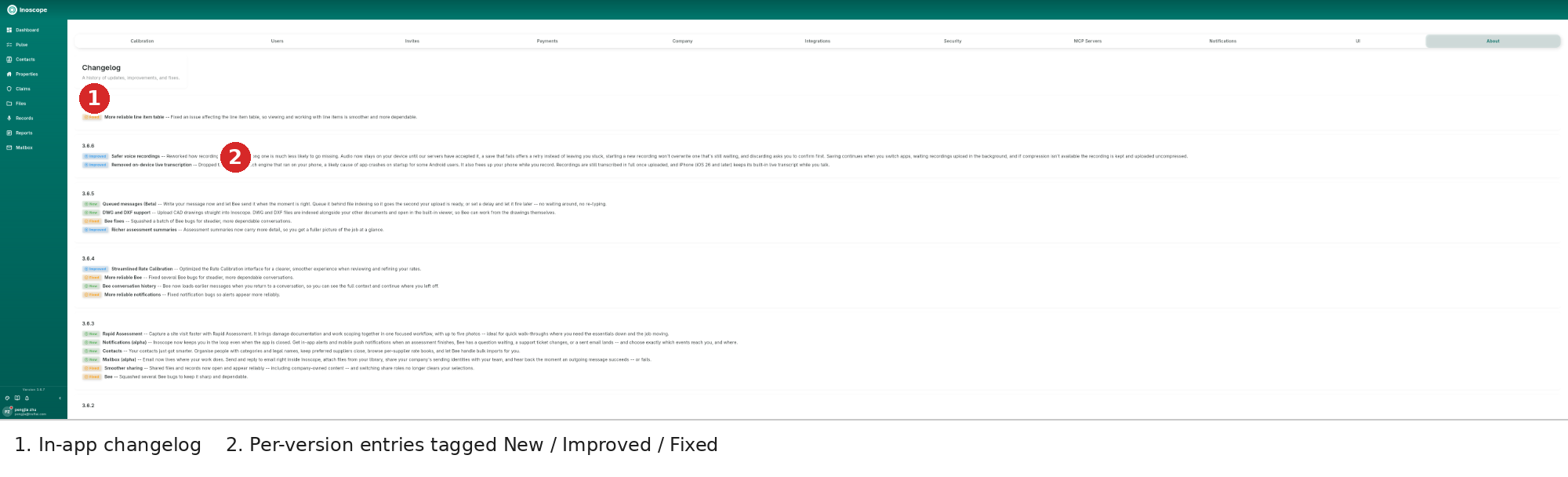
The in-app changelog — every release with New / Improved / Fixed entries, the same history this guide is based on.