
Files
Files is the company-wide library: every document, drawing, photo and report in one searchable place, organised in folders, with the same upload sources available inside each assessment.
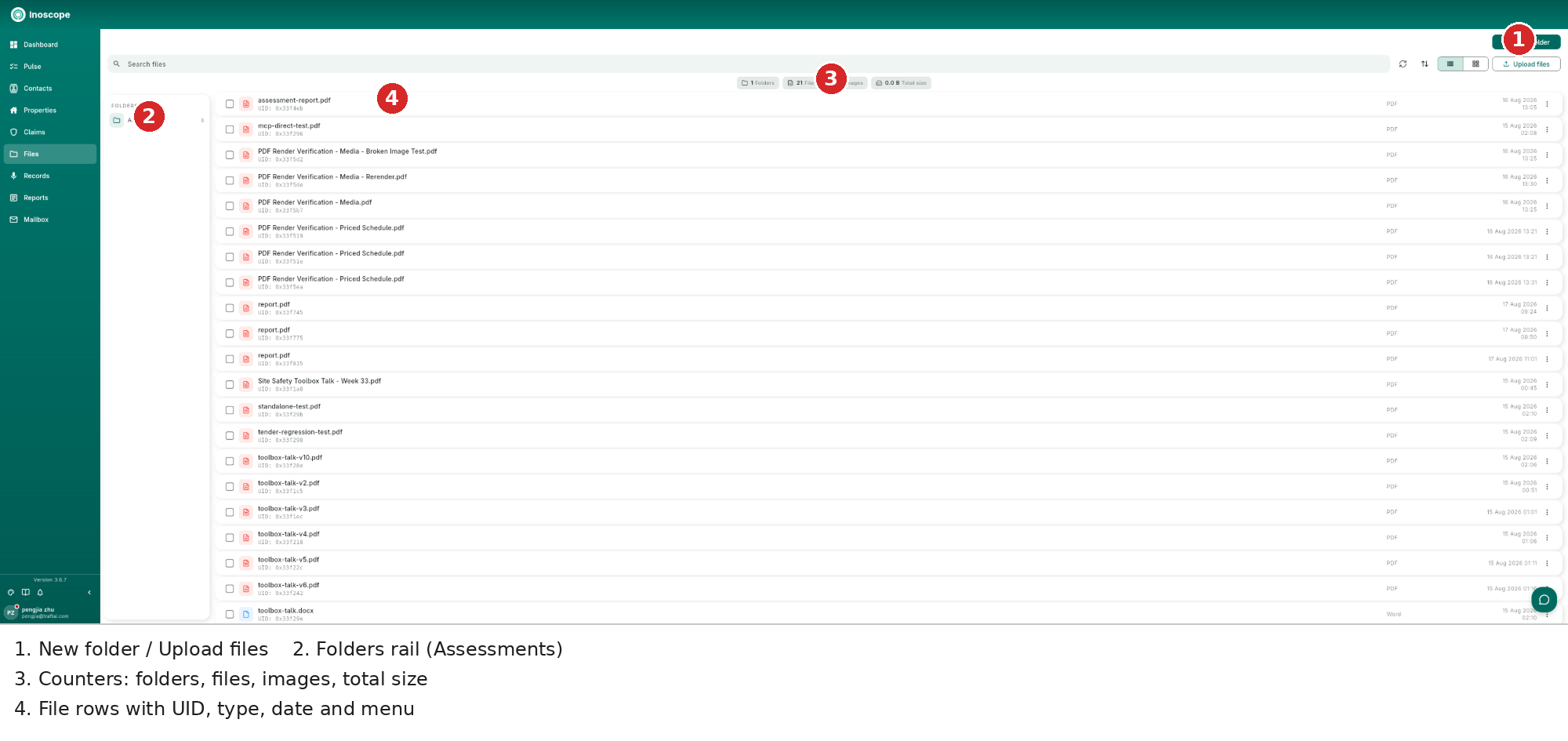
- New folder / Upload files — organise and add at the top level.
- Folders rail — e.g. the automatic Assessments folder; click into any folder to browse it.
- Counters — folders, files, images and total size for the current view.
- File rows — name, UID, type (PDF, Word, Excel, image…), date, and the ⋮ menu (preview, share, download, delete). List/grid toggle on the right.
Search matches names and indexed content — Bee and search both read inside your PDFs, Word, Excel, Outlook .msg, .rtf, DWG/DXF drawings and zip archives.
Upload Sources (Everywhere)
| Source | What It Does |
|---|---|
| Upload files | Pick from disk (or drag & drop); tiles show thumbnails and processing status while indexing |
| From Files | Attach an existing library file without duplicating it |
| From Records | Attach voice recordings and their transcripts |
Shared (including company-owned) files open and update reliably since 3.6.3.
Files Inside an Assessment
Each assessment's Files tab is a scoped view of the same library:
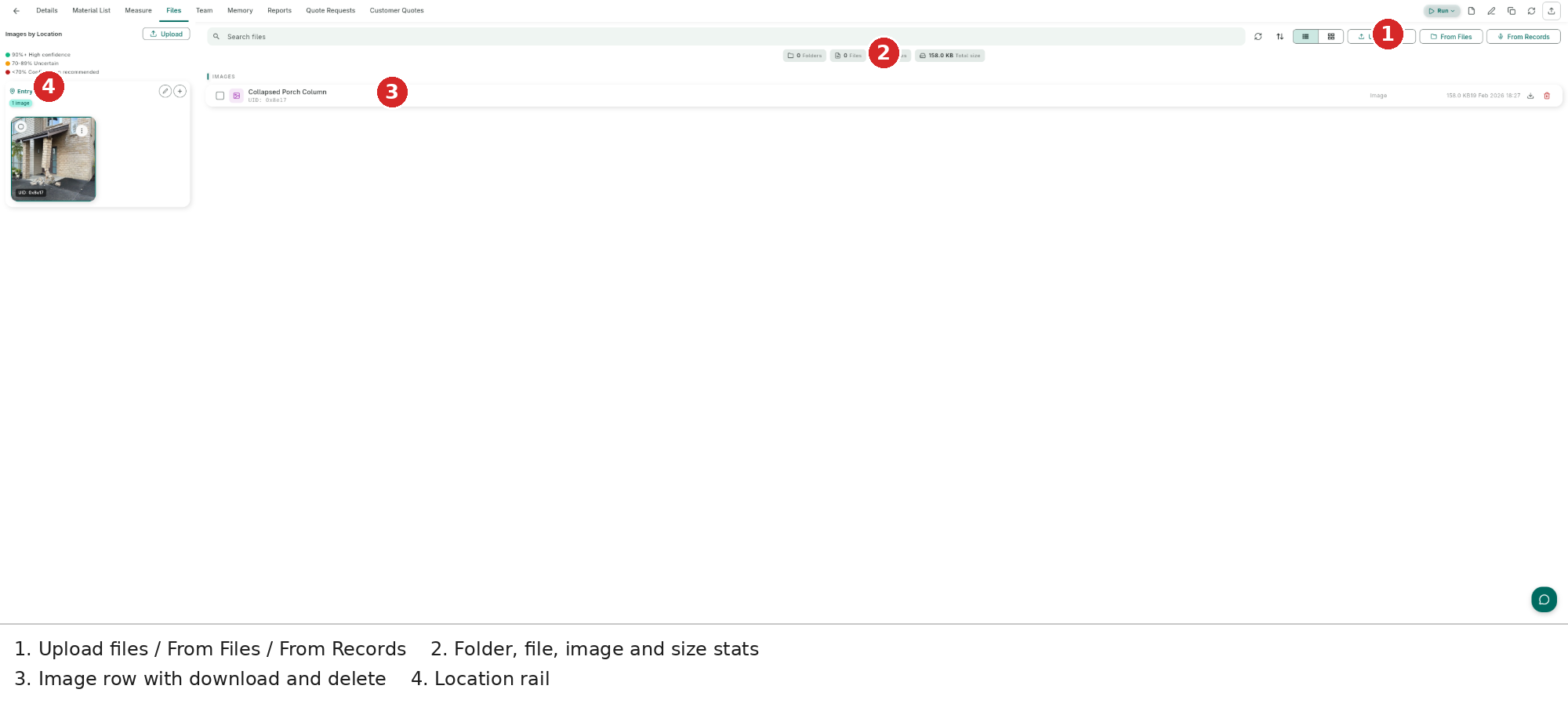
- Upload / From Files / From Records.
- Folder, file, image and size counters.
- Rows with download and delete; images feed the damage viewer.
- The locations rail (damage/general assessments).
Bee is available right inside the Files tab (3.5.0) — ask it to summarise a document or find a clause without leaving the page.
Snapshots
Assessment files support Snapshots (freeze/restore the file set and state) — see Assessments → Snapshots.