Inoscope AI Operator
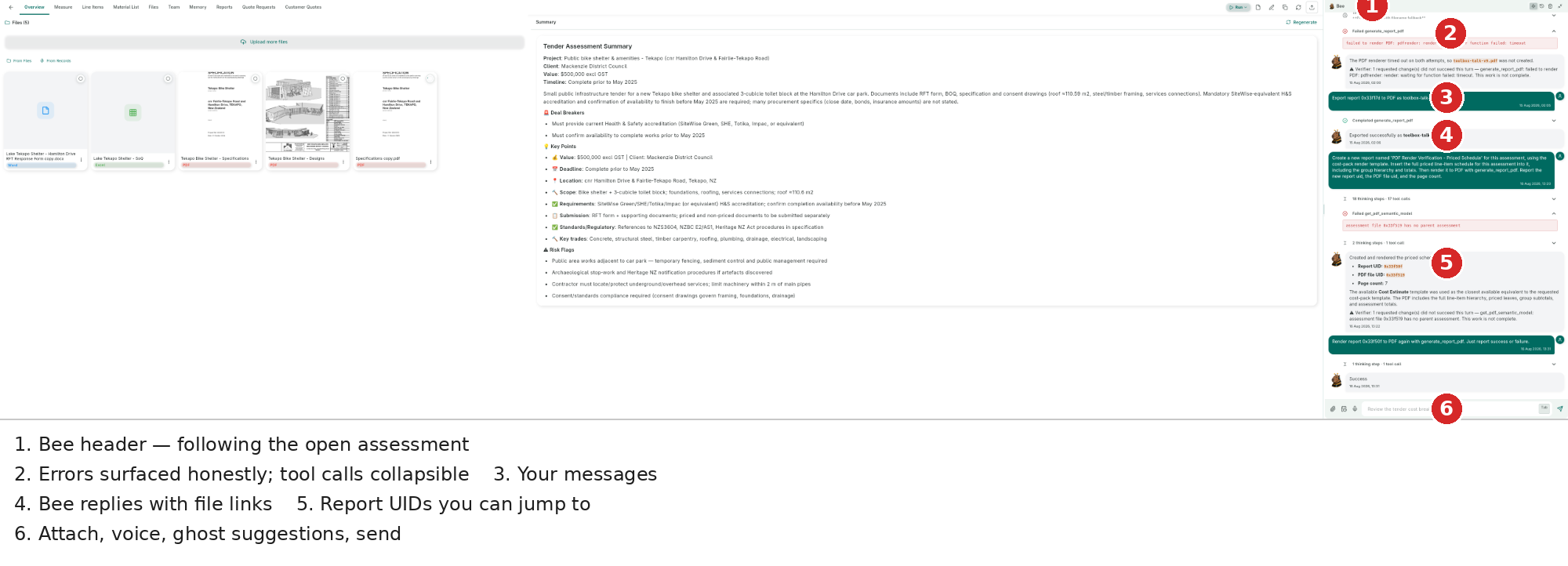
Meet Bee — Inoscope's autonomous AI Operator. The name stands for Build, Estimate, Execute: Bee builds your scope, estimates materials, labour, and cost, and executes every step end-to-end. Bee is the innovative way to operate Inoscope: type to Bee on any platform, or speak to Bee on the mobile app. Give Bee a command or chat directly — Bee handles every instruction, from simple questions to complex pricing work, multi-step tasks, and report generation.

Run vs Bee — When to Use Each
Every assessment type has a Run button for quick automated processing, and the Inoscope AI Operator panel where you work with Bee interactively. Both are powered by the same AI under the hood, but they are designed for different levels of complexity.
| Run | Bee | |
|---|---|---|
| What it does | Automatically runs all assessment steps end-to-end without interruption | You direct Bee, one request at a time, with full control |
| Best for | Quick, easy projects — a fast first draft or simple pricing | Complex pricing, multi-step tasks, and detailed work requiring precision |
| Scope | Always processes all uploaded images or documents in a single batch | You choose what to focus on — one image, one section, one question |
| Control | Hands-off — Run manages the full step sequence automatically | Full control — you decide what Bee runs, what changes, and when |
| Output | A complete first-draft assessment ready to review | Incremental additions, edits, and answers built up step by step |
Bee is available as soon as you upload files or images
You do not need to use Run first. Bee becomes active the moment your assessment has content and can be your primary workflow from the start.
Use Run when:
- You want the fastest path from files to a complete assessment without manual guidance
- Your project is straightforward and you need a quick draft or simple pricing
- You are processing many images or a large document set and want everything handled in one go
Use Bee when:
- Your project involves complex pricing, multi-step tasks, or detailed scope work
- You want to stay in control — describe what you want, review each step, decide what runs
- You have a targeted request ("Extract line items from section 3 only", "Price just the roofing items")
- You want to ask questions, explore the documents, or verify what Bee has found
- You want to run only part of the workflow — for example, re-price a single group after changing quantities
- Run has already completed and you need to refine, correct, or add missing items
Use Plan mode for the most complex work
For even more complex tasks, switch Bee to Plan mode at the top of the Inoscope AI Operator panel before giving your instructions. Bee will build a detailed step-by-step plan for your review before taking any action. Approving the plan before pricing begins significantly increases accuracy and gives you full oversight of every decision.
Two valid starting points
Quick path — Run first:
- Upload images or documents
- Click Run — Bee generates a complete first draft automatically
- Review the results
- Ask Bee to refine, correct, or add missing items
Controlled path — Bee first:
- Upload images or documents
- Open the Inoscope AI Operator panel and switch Bee to Plan mode at the top
- Describe the work ("Extract all line items from the SOQ and price them")
- Review and approve the detailed plan before anything is executed
- Bee executes each step in sequence — you stay in control throughout
Run is fast and hands-off. Bee is precise and deliberate. For complex work, Plan mode gives you the highest level of accuracy and control.
Opening the Inoscope AI Operator Panel
Desktop
The Inoscope AI Operator panel — where you work with Bee — floats on the right side of the assessment detail view as a draggable, resizable panel. It is open by default when you enter an assessment. Use the header controls to minimize, maximize, or close it.
Mobile
On mobile, Bee is available as the Inoscope AI Operator tab in the assessment detail view. Tap the Inoscope AI Operator tab to open it — the same full capabilities are available in the mobile layout, including voice input.
Input Bar

The input bar at the bottom of the Inoscope AI Operator panel has three controls:
| Control | Icon | Description |
|---|---|---|
| Attach | Paperclip | Attach any file — images, PDFs, Word docs, spreadsheets. Files are uploaded to the assessment and sent to Bee with your message. |
| Voice toggle | Mic / T | Switch between voice and text input (not available on web). |
| Send / Stop | Arrow / Circle | Send your message (arrow), or stop Bee mid-response (circle). |
Type your message and press Enter to send, or Shift+Enter for a new line.
Voice Operation

Voice Operation is available on our phone app. It lets you speak directly to Bee when away from your desktop — so you can work hands-free on complex tasks and price jobs without typing a single word.
- Tap the mic icon to switch to Voice Operation. The input area changes to a "Hold to talk" button.
- Press and hold the button to record your message.
- Release to transcribe — your spoken words are sent to Bee automatically.
- Tap the T icon to switch back to text input.
Your voice preference is saved across sessions.
Attaching Files
Click the paperclip icon to open a file picker. You can attach:
- Images — JPEG, PNG, GIF, WebP, BMP (uploaded as assessment images for AI analysis)
- Documents — PDF, DOCX, XLSX, CSV (uploaded as assessment files, indexed for search)
Attached files appear as chips in the input area before sending. Multiple files can be attached at once. Bee can read, analyze, and reference all attached files in its response.
Sending a Message
- Open the Inoscope AI Operator panel.
- Type your question or request to Bee (or use Voice Operation).
- Optionally attach files with the paperclip.
- Press Enter or click the send button.
Bee Status Indicators
While Bee is working, a status bubble appears in the Inoscope AI Operator panel with a spinner and descriptive text. The status updates in real time as Bee moves between phases.

Session status dot (shown in the Inoscope AI Operator header):
| Dot colour | Meaning |
|---|---|
| Blue | Idle — Bee is ready for your next message |
| Orange | Bee is processing, waiting for your answer, or compacting context |
| Green | Connected and monitoring |
| Grey | Session closed or inactive |
During processing, the status text reflects what Bee is doing:
| Status text | What's happening |
|---|---|
| Deciphering… / Analyzing… | Bee is reading your message and deciding what to do |
| Reading file… | Bee is reading an uploaded document |
| Analyzing image… | Bee is looking at a specific image |
| Searching documents… | Bee is searching across uploaded files |
| Creating line items… | Bee is writing new cost items to the assessment |
| Recording damage… | Bee is creating damage items |
| Searching rates… | Bee is looking up product or labour rates |
| Searching web… | Bee is fetching current pricing or specifications |
| Processing in background… | Bee is handling a parallel task in the background |
| Processing results (step N)… | Multi-step task in progress — step N of several |
To stop Bee mid-response, click the red stop circle that replaces the send button while processing.

Bee Modes
The Inoscope AI Operator header shows Bee's current mode. Click the mode badge (Plan or Build) to toggle between them. Switching is disabled while Bee is processing.
| Mode | Badge colour | Description |
|---|---|---|
| Build | Blue | Default — full capabilities. Bee reads, creates, edits, and deletes assessment data directly. |
| Plan | Purple | Read-only analysis: Bee reviews your files and writes a step-by-step plan. Nothing is created or changed until you explicitly approve. |
Plan Mode
Plan mode is the right choice when you want full control — including on a fresh assessment. In Plan mode Bee can only read and analyse your content. Bee cannot create, edit, or delete anything until you approve.
Workflow:
- Switch Bee to Plan mode in the Inoscope AI Operator header
- Describe what you want (e.g. "Extract all line items from the SOQ, then price them using NZ rates")
- Bee reads your files and writes a structured plan — you see exactly what Bee intends to do, step by step
- Review the plan. Ask Bee to revise, add, or remove steps if needed
- Approve the plan — Bee switches to Build mode and executes each step in sequence
When to use Plan mode:
- Starting a fresh assessment and you want to see the approach before anything runs
- The task spans multiple documents or stages and you want oversight at each step
- You are working on a large or complex tender and want to confirm the scope before committing
- You want to understand what Bee will do before any data is created or changed
Skip Questions Mode
The ⚡ (lightning bolt) button in the Inoscope AI Operator header controls how Bee handles clarifying questions during execution.
| State | Badge colour | Behaviour |
|---|---|---|
| Off (default) | Grey | Bee pauses and asks you to answer each question before continuing |
| On | Amber | Bee answers its own questions automatically and keeps working without interruption |
Turn Skip Questions Mode on when you want Bee to run a long task unattended. Turn it off when you want to review every decision Bee makes along the way.
Quick Response
After each response, Bee shows quick response options — suggested follow-up actions based on the current context and your past behaviour. Click any option to load it into the input field, then press Enter to send.
Quick responses are hidden while you are typing, while Bee is processing, and while a question is waiting for your answer.

User Questions (Multi-select Interface)
Sometimes Bee needs your input before proceeding. Bee pauses and presents a question with multiple-choice options:
- Bee displays the question and options.
- Select one or more answers.
- Bee continues based on your choices.
This happens when instructions are ambiguous or when a decision affects how subsequent steps are carried out (e.g. "Should I include GST in all line items?").
What Bee Can Do
Damage Assessments
| Task | Example prompt |
|---|---|
| Analyze images for damage | "Analyze all exterior images for rot, paint peeling, and cladding defects" |
| Create damage items | "Document the water staining on the kitchen ceiling — high severity, gradual ingress" |
| Insurance categorization | "Separate sudden damage from gradual deterioration for the insurance claim" |
| Repair scope | "Generate line items to repair the fire-damaged bedroom — materials, labor, and painting" |
| Compare images | "Compare the bathroom photos from before and after the flood" |
General Work Assessments
| Task | Example prompt |
|---|---|
| Scope work from images | "What work is needed based on the uploaded photos?" |
| Cost estimation | "Estimate the cost of replacing the roof tiles, using Auckland rates" |
| Create a quote | "Build a complete quote for the fence replacement, grouped by materials and labor" |
| Material search | "Search for treated timber pricing for the deck rebuild" |
| Measurements from images | "How big is the area that needs retiling in the bathroom?" |
Tender Assessments
| Task | Example prompt |
|---|---|
| Extract line items | "Read the uploaded SOQ and extract all line items" |
| Build hierarchy | "Create section groups matching the schedule headers, then add work items beneath each" |
| Price items | "Price all extracted line items using current NZ rates" |
| Search specifications | "What does the spec document say about waterproofing requirements?" |
| Summarize documents | "Summarize the key requirements from each uploaded tender document" |
Best Prompt Practices
Be specific
| Instead of… | Try… |
|---|---|
| "Check the images" | "Analyze the kitchen ceiling images for water staining and mold" |
| "Add some costs" | "Create line items for replacing damaged plasterboard in the bathroom — include materials and labor" |
| "What's wrong?" | "What type of damage is visible in image 3, and what's the likely cause?" |
| "Price it" | "Price all line items using current Christchurch market rates" |
Reference specific items
- "Look at the third image in the Exterior group"
- "Update the plasterboard line item quantity to 12 square meters"
- "What's the severity rating of the moisture damage near the window?"
Ask for structured output
- "Create a cost breakdown by room for all repairs"
- "List all damage items sorted by severity, highest first"
- "Summarize the assessment with separate sections for each damage type"
Provide context
- "This is a 1960s weatherboard house — check for asbestos-containing materials"
- "The property is in Auckland, New Zealand — use NZ market rates"
- "This is for an insurance claim — categorize all damage as sudden vs gradual"
- "The client has a $50,000 budget — flag any items that push over that"
Chain requests
Ask follow-up questions in the same conversation. Bee remembers everything said in the current session:
- "Now group those line items by trade (plumbing, electrical, painting)"
- "Add a 15% contingency to all materials"
- "Which of the items we just priced are over $5,000?"
Use Plan mode for control and oversight
Switch Bee to Plan mode whenever you want to see and approve the approach before anything runs — including on a fresh assessment:
- "Extract all items from the tender SOQ, then price them and group by trade"
- "Analyze all uploaded photos, document the damage, and generate a repair scope"
- "Review the engineer's report and the drawings, then build a complete line item list"
Bee will read your files, write a structured plan, and wait for your approval before executing anything.
Session Management
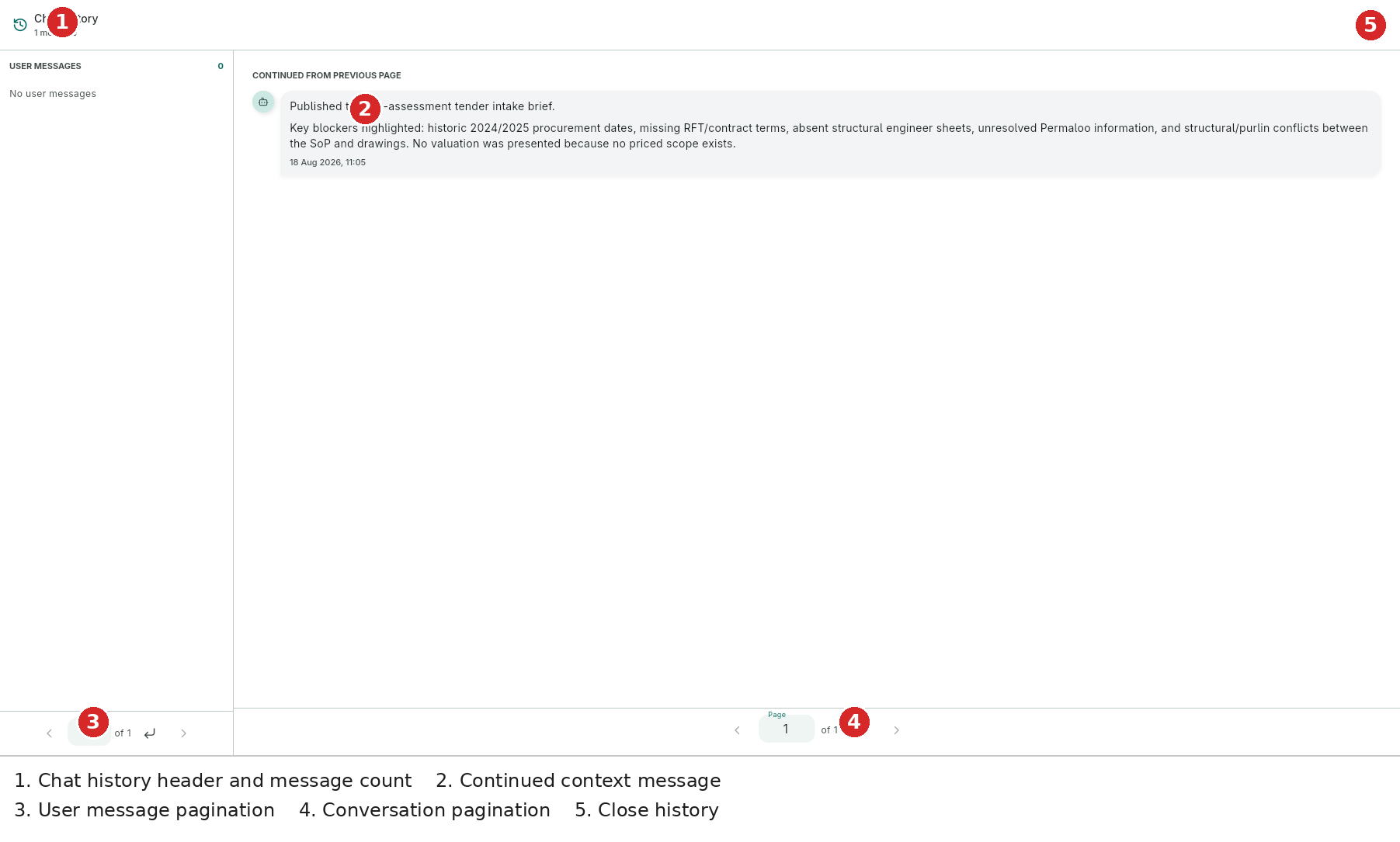
Bee keeps a conversation history for the current session. You can scroll back to review previous exchanges.
Clearing the Conversation
Use the trash icon in the Inoscope AI Operator header to clear the message history and start a fresh conversation with Bee. Clearing the conversation does not delete any assessment data (damage items, line items, files) that Bee already created.
Desktop Panel Controls
On desktop, the floating Inoscope AI Operator panel supports:
| Action | How |
|---|---|
| Move | Drag the panel header |
| Resize | Drag any edge or corner |
| Minimize | Click the minimize icon in the header |
| Maximize | Click the expand icon in the header |
Report Generation
Once your assessment has images, damage items, or line items, you can ask Bee to generate a professional PDF report — or trigger it from the top action bar.

Generating a Report
There are two ways to trigger a report:
- Click the Generate Report (📄) icon in the assessment's top action bar, or
- Ask Bee: "Generate a report"
Bee processes your assessment data, creates a Report.docx file, and saves it to the assessment's Files tab. Bee then shows a summary of the report in the Inoscope AI Operator panel with key findings, total cost, and recommended next steps.
Report Content
| Section | Content |
|---|---|
| Cover Page | Assessment name, property address, date, assessor details |
| Overview | Assessment summary, property description, scope of inspection |
| Images | All inspection photos with annotations and damage overlays |
| Damage Items | Complete list of detected damage with type, cause, severity, and location |
| Line Items | Itemized cost breakdown with quantities, unit prices, and totals |
| Cost Summary | Total estimated cost with breakdowns by category/section |
| Conclusions | AI-generated summary and recommendations |
Downloading Reports
- Go to the assessment detail screen.
- Reports appear in the Files tab once generated.
- Click Download to save to your device, or View to open in the browser.
Report Status
| Status | Meaning |
|---|---|
| Draft | Report is being prepared |
| In Progress | Report is being generated |
| Completed | Report is ready for download |
| Error | Report generation failed — try again |
You can generate multiple reports for the same assessment. Each is timestamped independently — useful after updating line items or for different stakeholder versions.