Skip to content

14. Export & Integrations

Inoscope lets you export assessment data to CSV files and send it directly to Fergus (job management) with a few clicks.

Export dialog showing available export options — Fergus and CSV


Opening the Export Dialog

  1. Open the assessment you want to export.
  2. Click the Export (↑) button in the top action bar.
  3. The Export Dialog appears — select your format or integration from the dropdown.

CSV Export

Export your line items as a CSV spreadsheet.

CSV Export options — column checkboxes with Name always enabled and Hide leaf items toggle

Column Selection

Choose which columns to include. Name is always included and cannot be removed.

ColumnDefaultDescription
NameAlways onLine item name (cannot be removed)
TypeOnItem type (Material, Labour, Equipment, etc.)
QuantityOnQuantity value
UnitOnUnit of measure (m², hr, lot, etc.)
Unit PriceOnRate per unit
Total CostOnCalculated total (Unit Price × Quantity × Margin × Discount)
SourceOnDocument or image the item was sourced from
MarginOffMargin percentage applied to the item
DiscountOffDiscount percentage applied to the item

Additional Option

OptionDescription
Hide leaf itemsCollapse sections that only contain leaf items into a single row, showing just the group total

How to Export

  1. In the Export Dialog, select CSV Export from the dropdown.
  2. Check or uncheck columns as needed.
  3. Toggle Hide leaf items if you want a condensed output.
  4. Click Export.
  5. The CSV file downloads automatically.

Fergus Integration

Export assessments directly to Fergus to create jobs with quoted line items.

Fergus export options — Customer, Site, and Job selection with search and create-new support

Setting Up Fergus

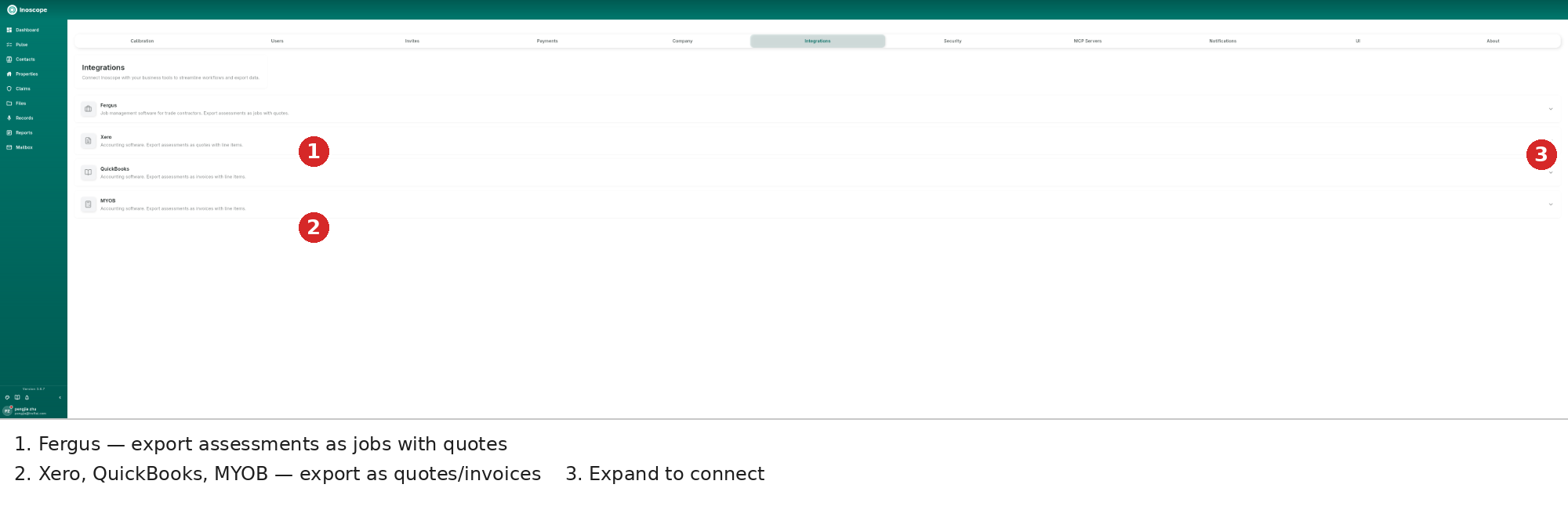
Settings — Integrations tab showing Fergus (Active) with account code configuration

  1. Go to SettingsIntegrations tab.
  2. Click Fergus to expand the integration panel.
  3. Fill in the account details:
FieldDescription
Display NameLabel shown in the export dropdown (e.g., "BSG")
API TokenYour Fergus API token — stored securely and not displayed after saving
  1. Set Line Item Type Mappings — enter the Fergus sales account code to use for each line item type:
MappingDescription
Material Sales Account CodeAccount code for material line items
Labour Sales Account CodeAccount code for labour line items
Equipment Sales Account CodeAccount code for equipment line items
Subcontract Sales Account CodeAccount code for subcontract line items
Overhead Sales Account CodeAccount code for overhead line items
Site Service Sales Account CodeAccount code for site service line items
  1. Click Test Connection to verify the token works.
  2. Click Save Settings.

Multiple Accounts

To connect more than one Fergus workspace, click + Add Account in the Accounts section. Each account appears as a separate option in the export dropdown (e.g., "Fergus - BSG").

Exporting to Fergus

  1. Open an assessment and click Export.
  2. Select your Fergus account from the dropdown (e.g., "Fergus - BSG").
  3. Fill in the three fields:

Customer

Search your Fergus customer list by name. The dropdown shows each customer's name, email, phone, and ID.

  • Type to filter — results paginate automatically as you scroll.
  • If the customer does not exist, click + Create New Customer and fill in:
FieldRequired
Customer NameYes
First NameNo
Last NameNo
CompanyNo
EmailNo
PhoneNo

Site

Search Fergus sites by name or address. The Site field is independent — you can select a site without selecting a customer first.

  • Type to filter — results show contact name, site name, and address.
  • If the site does not exist, click + Create New Site and fill in:
FieldRequired
Site NameYes
First NameNo
Last NameNo
CompanyNo
AddressYes
CityNo
PostcodeNo

Job

Search existing Fergus jobs. A customer must be selected before searching jobs — the field shows "Select a customer first" until a customer is chosen. Results show job title, description, type, and ID.

  • If the job does not exist, click + Create New Job (available once a customer is selected) and fill in:
FieldRequired
Job TitleYes
DescriptionYes
  1. Click Export to send the line items to Fergus.
  2. The assessment line items are created as quote items on the selected job.

Xero Integration

Xero integration is not yet available. The Xero card is shown in Settings → Integrations but cannot be connected at this time. It will be enabled in a future release.


Managing Integrations

Go to Settings → Integrations to manage all connected integrations.

Settings — Integrations tab showing Fergus (Active) and Xero

Each integration card shows its current status. For Fergus:

  • Active (green badge) — the integration is connected and ready to use
  • Click the card to expand account details, update settings, or add accounts
  • Use Test Connection to verify the API token is still valid
  • Use Disable Account to deactivate an account without deleting its settings

Next Steps