
Properties
Properties are the buildings you work on. Since 3.5.0 every assessment attaches directly to a property, so all the work tied to a building — assessments, contacts, documents, photos — lives in one place.
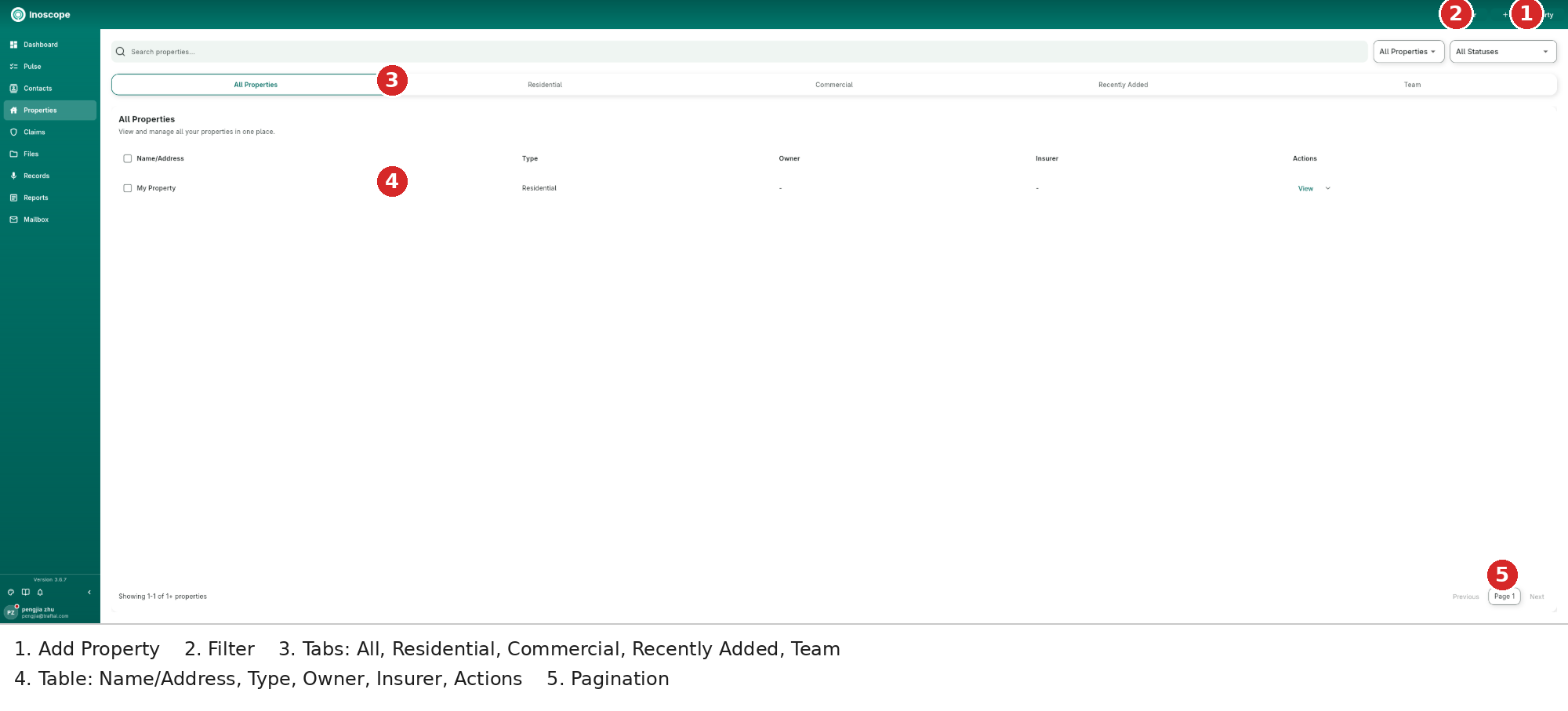
- Filter / Add Property — narrow the list or register a new building.
- Type & status dropdowns — All Properties / Residential / Commercial and status filters.
- Tabs — All Properties, Residential, Commercial, Recently Added, and Team.
- Table — Name/Address, Type, Owner, Insurer, and Actions (View plus a row menu).
- Pagination — page through large portfolios.
The Property Page
Open a property with View to see everything tied to it:
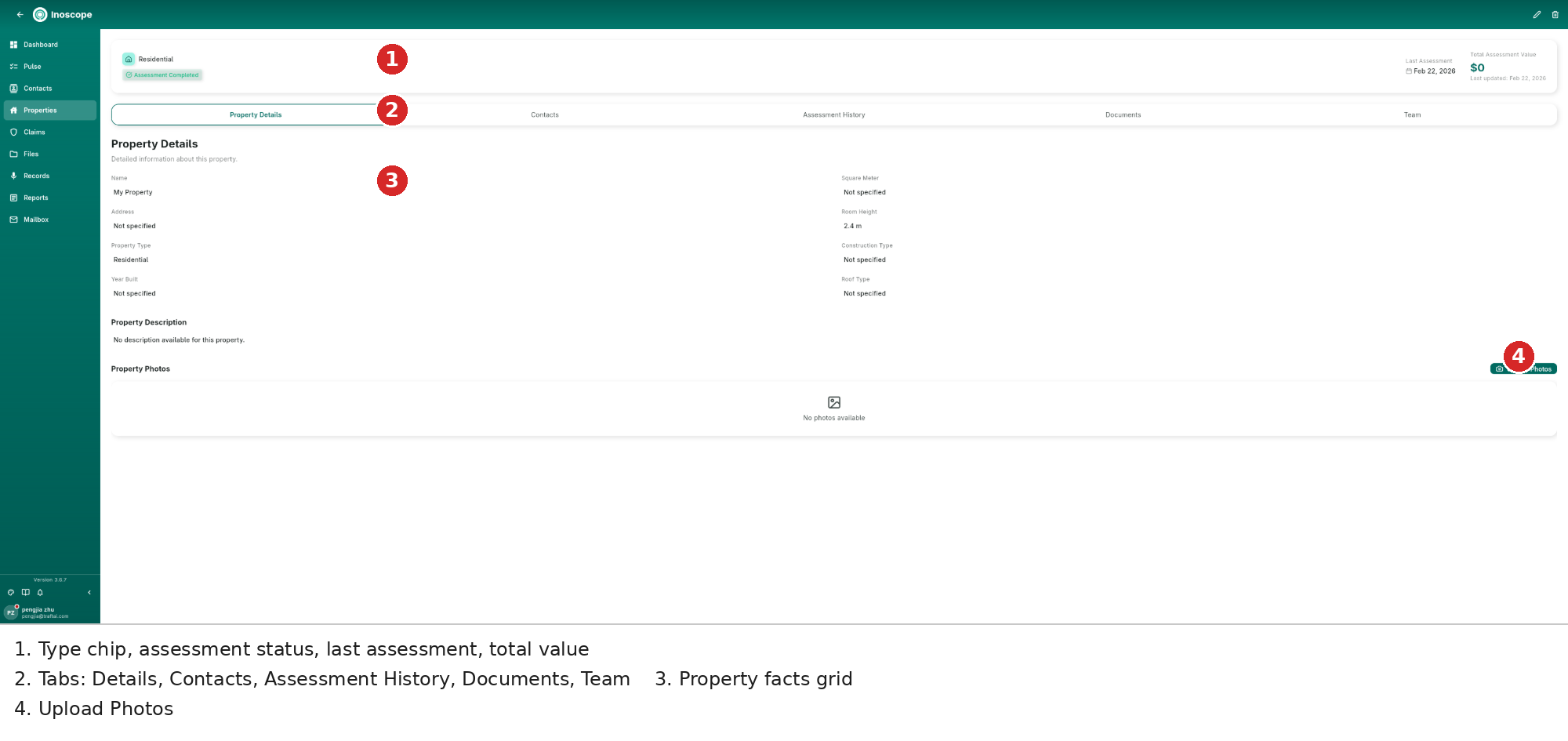
- Header — type chip (Residential/Commercial), assessment status, last assessment date, and the total assessment value rolled up from all work on the building.
- Tabs — Property Details, Contacts, Assessment History, Documents, and Team.
- Facts grid — name, address, type, year built, floor area, room height, construction and roof type; edit with the pencil in the header.
- Property Photos — upload reference photos once; reuse them across assessments.
The Assessment History tab lists every assessment on the property, and Documents collects property-level files.
Adding a Property
Add Property walks you through address, type and details in a short form; the property is then available in the create-assessment dialog's Fill Details picker.