
1. Getting Started
This chapter walks you through logging in and navigating Inoscope for the first time.
Logging In
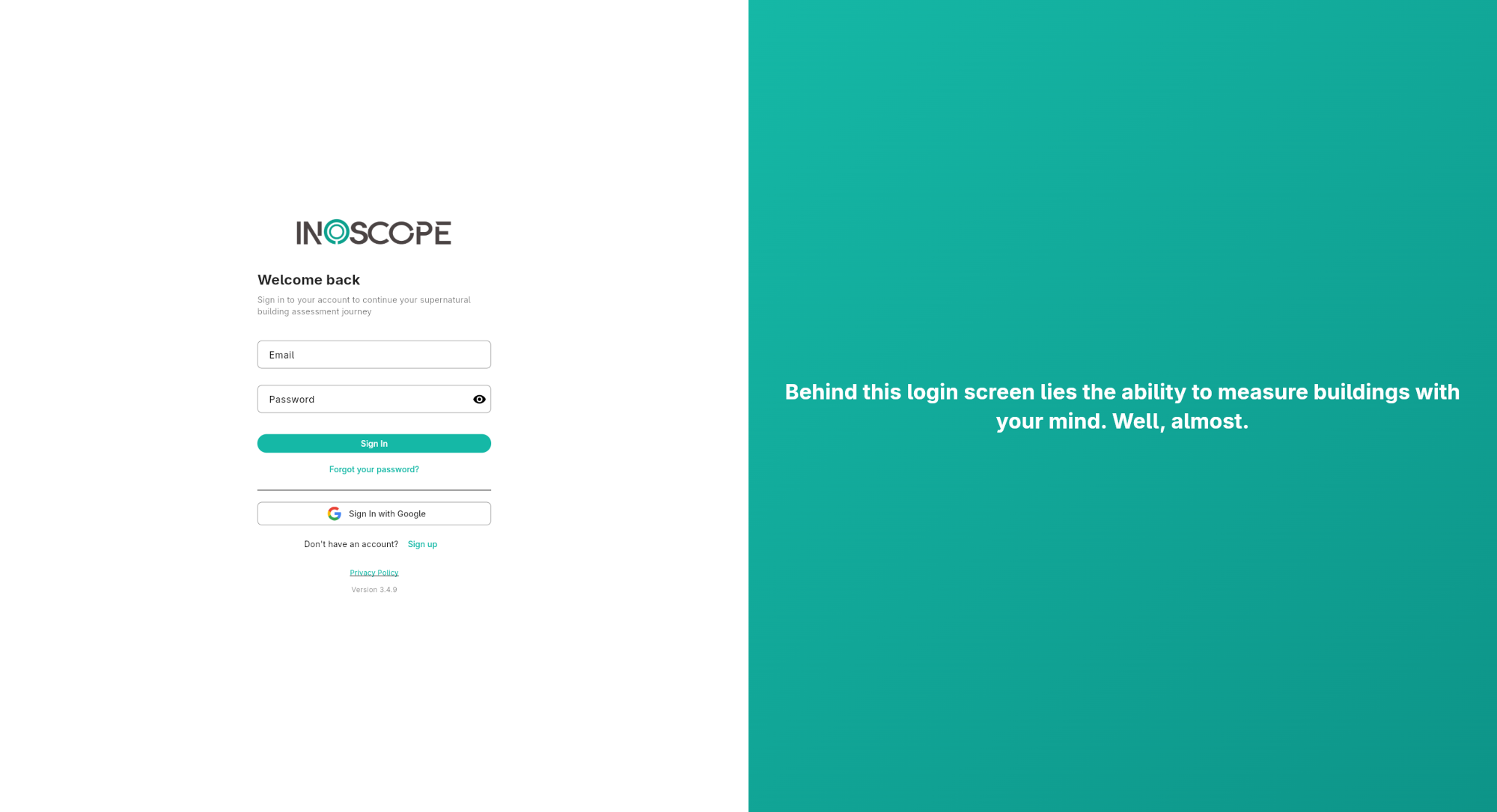
- Go to app.inoscope.com in your browser.
- Enter your Email and Password, then click Sign In.
- Alternatively, click Sign In with Google to use your Google account.
If you don't have an account yet, click Sign up at the bottom of the form.
Forgot Your Password?
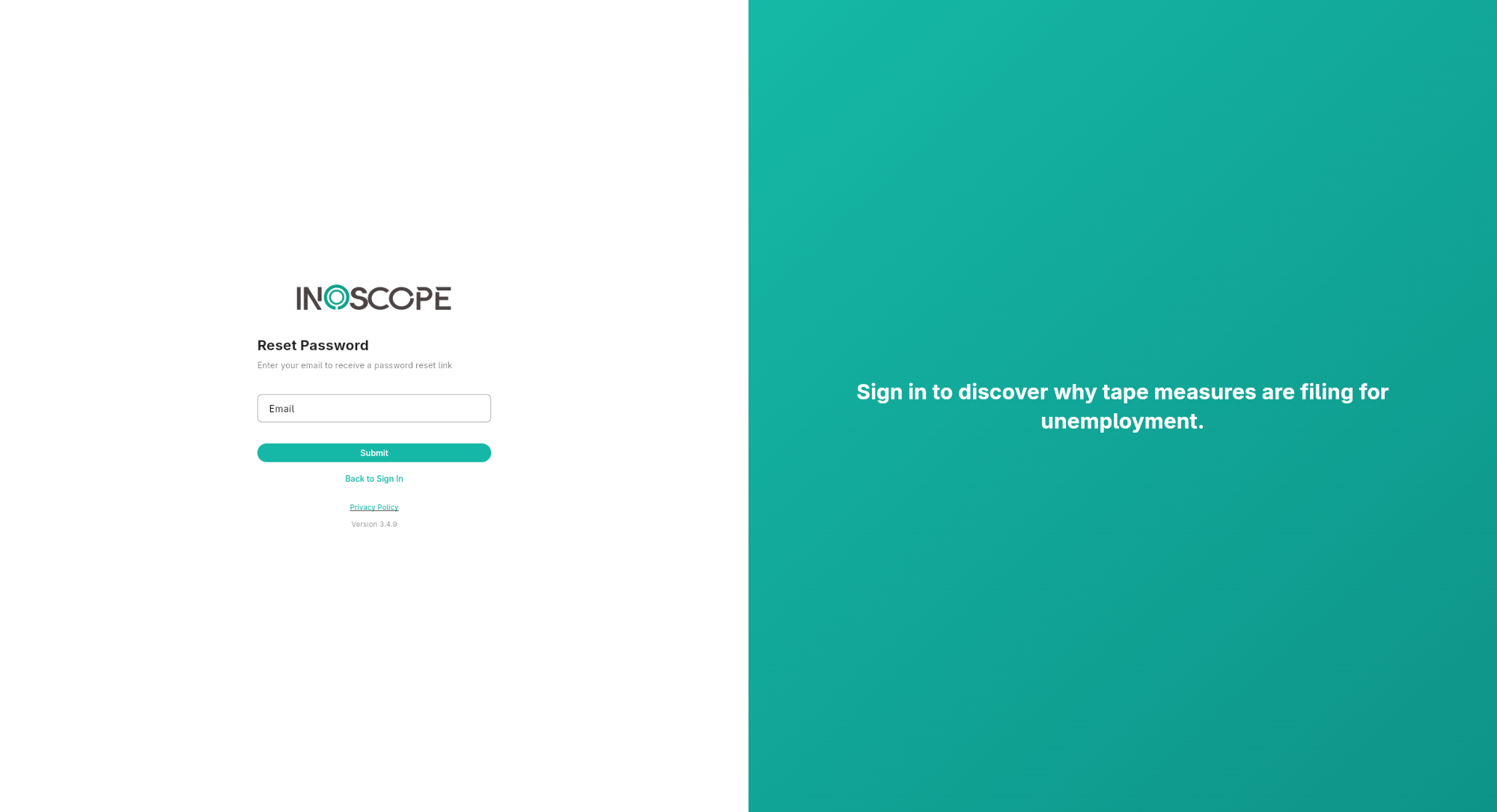
- Click Forgot your password? on the login screen.
- Enter your email address and click Submit.
- Check your inbox for a reset link and follow the instructions.
- Click Back to Sign In to return to the login screen.
What's New Dialog
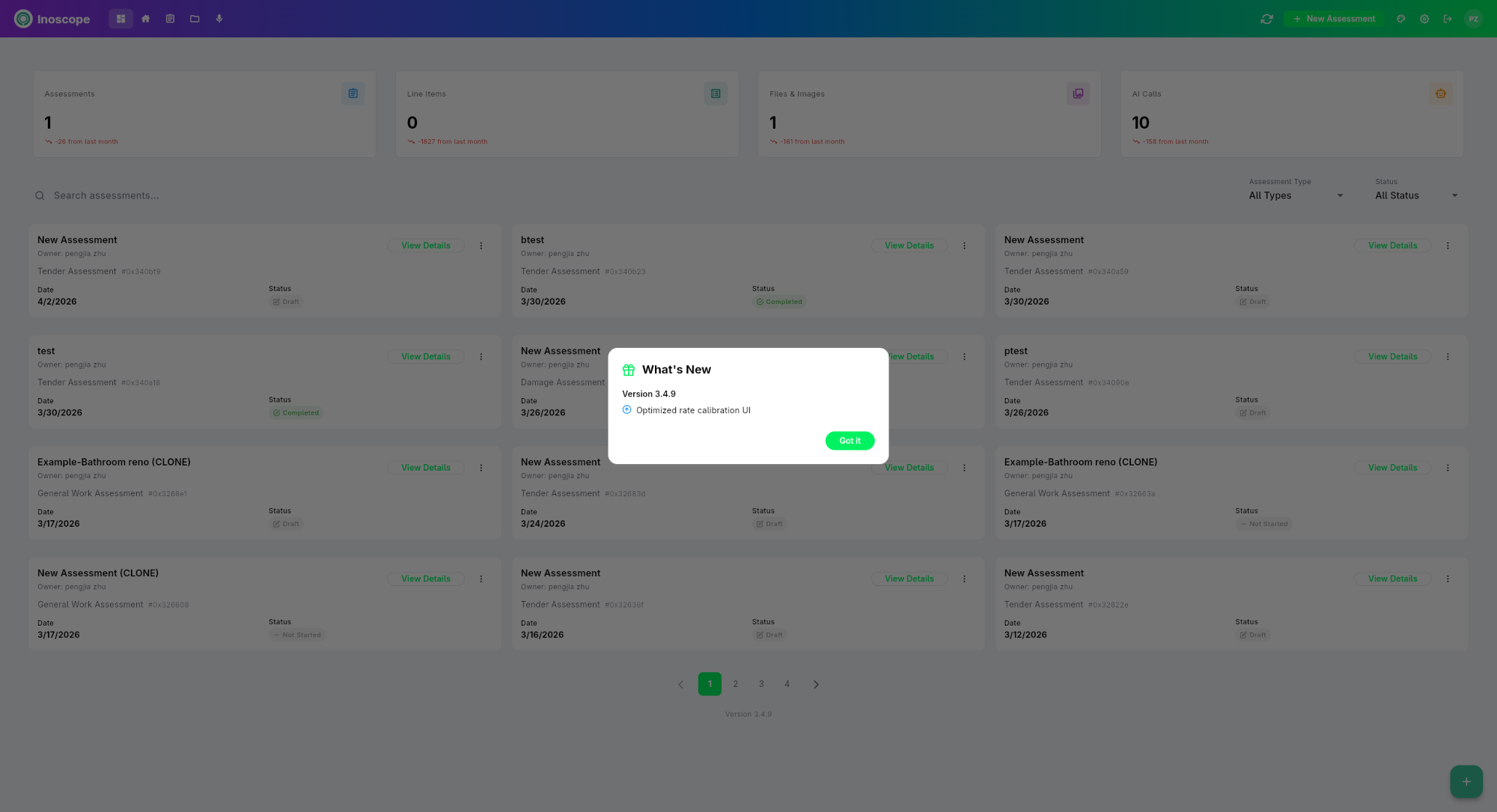
After logging in, you may see a What's New dialog highlighting the latest features. Click Got it to dismiss it and go to the dashboard.
The Dashboard
After logging in (or dismissing the What's New dialog), you land on the Dashboard.
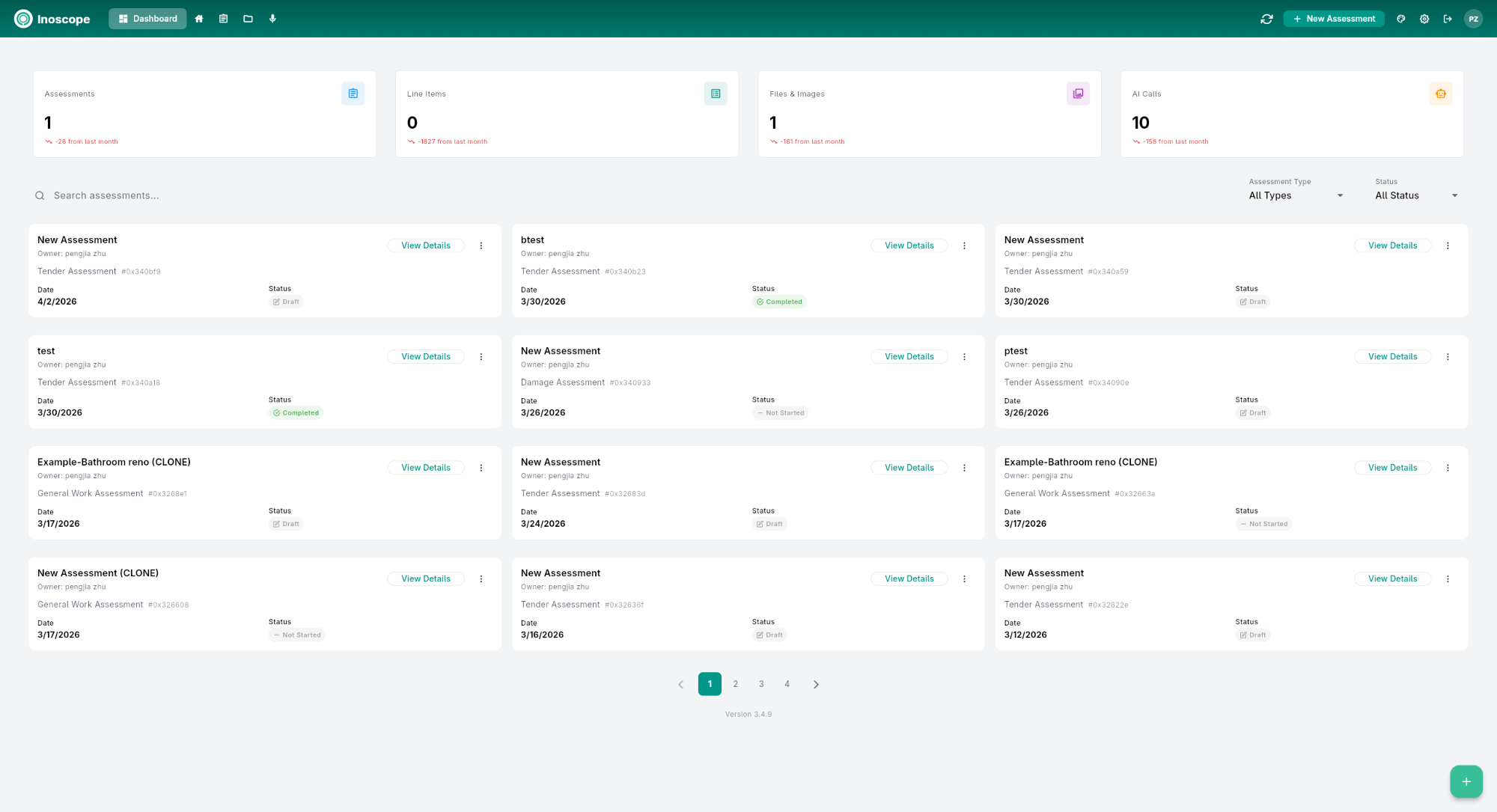
The dashboard is your main workspace — it shows all your assessments, lets you search and filter them, and provides quick access to create new ones. See Dashboard for full details.
Navigating the App
The top navigation bar is always visible and contains:
- Logo (left) — Click to return to the dashboard
- Nav icons (center-left) — Quick links to: Dashboard, Properties, Files, Records
- Refresh (↻) — Reload data from the server
- + New Assessment — Create a new assessment
- Help (?) — Open help resources
- Settings (⚙) — Open Settings
- Sign Out (→) — Log out
- Profile avatar — Your initials; click to view profile
System Requirements
Inoscope runs in any modern web browser:
- Google Chrome (recommended)
- Mozilla Firefox
- Microsoft Edge
- Safari
For the best experience, use a desktop or laptop. The app is responsive and works on tablets.